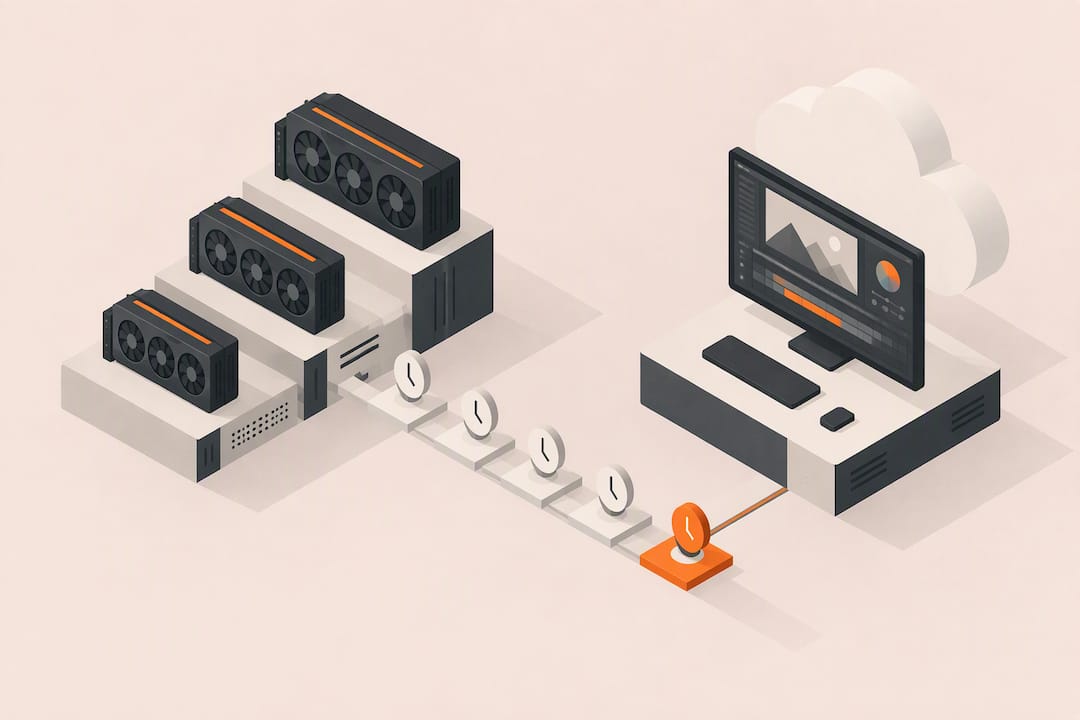
Cloud workstations are production-ready for most professional video editing workflows that depend on GPU acceleration, with one real constraint: your network and asset workflow have to match the job. The benefits are concrete: scalable GPU power on demand, no capital outlay on hardware, and instant access for remote teams. The sections below walk through performance, storage, network planning, and cost so you can decide with real numbers instead of guesswork.
TL;DR:
- Cloud workstations are most beneficial for GPU-intensive tasks like 4K to 8K editing, color grading, and multi-editor collaboration, especially during deadline crunches.
- Matching GPU VRAM, CPU cores, and RAM to project needs is crucial; heavy native 4K work benefits from multi-GPU setups with ample VRAM and high-core-count CPUs.
- Storage choices, whether object storage or streaming-enabled file systems, directly impact real-time editing and collaboration, with proxies reducing bandwidth demands.
- Stable, low-latency internet connections and staged workflows are essential for smooth 4K/60fps streaming and accurate color grading remotely.
- Billing on a per-minute basis with session hibernation and pre-staging proxies keeps cloud project costs predictable and efficient, especially for bursty or short-term tasks.
Table of Contents
- What is a video editing cloud workstation and when should you use one?
- Performance and hardware: matching GPUs, CPU, and RAM to your project
- Storage and collaboration workflows for large media files
- Network and streaming: what bandwidth and latency you actually need
- Cost and billing: estimating what a cloud workstation project will actually cost
- How Vpzzo fits these requirements for post-production teams
- What I’d check before any studio moves to the cloud
- Start a pilot project on a Vpzzo cloud workstation
- FAQ
- Sources
What is a video editing cloud workstation and when should you use one?
A cloud workstation for video editing is a dedicated GPU desktop that lives on a remote server, streams to your browser, and offers persistent storage that keeps your project files and settings between sessions. You are not sharing a GPU with other tenants, and you are not reinstalling software every time you log in.
Cloud setups make the most sense in specific situations rather than as a blanket replacement for local machines:
- Scaling up fast for a deadline without buying a new workstation
- Supporting a remote or distributed team that needs identical, predictable specs
- Handling GPU-heavy tasks like color grading or 3D rendering that would choke a laptop
- Covering a temporary gap while your own hardware is being repaired or upgraded
Common production use cases include 4K and 8K timeline editing, multi-editor collaboration on the same cut, color finishing sessions that need accurate GPU-accelerated scopes, and GPU-driven effects or render passes that would otherwise tie up a local machine for hours.
Performance and hardware: matching GPUs, CPU, and RAM to your project
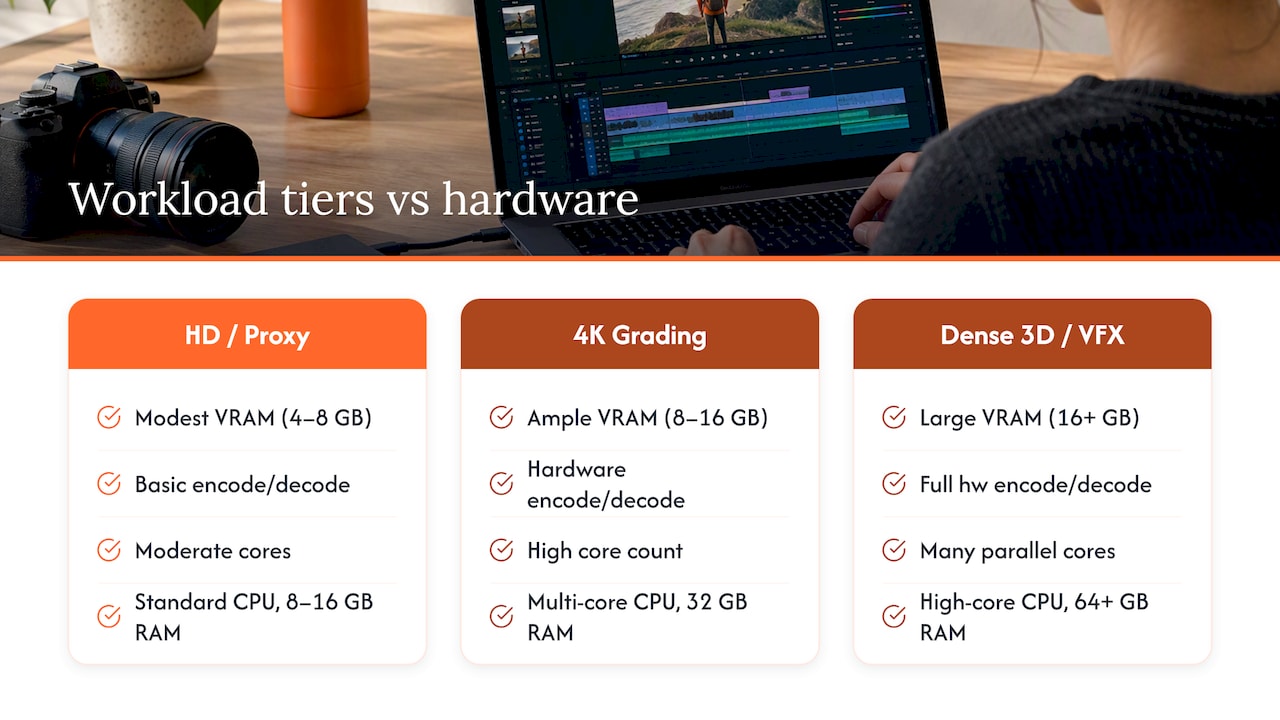
The GPU is the part that decides whether your timeline plays back smoothly or stutters. For video work, three things matter most: VRAM capacity, hardware encode and decode support, and parallel core count for effects and color math. A GPU with limited VRAM will choke on multi-layer 4K timelines or heavy noise reduction, while one with ample headroom handles multicam grading and GPU-accelerated plugins without dropping frames.
CPU cores and system RAM matter just as much for playback of unoptimized media, proxy generation, and background rendering. A timeline full of native RAW footage leans harder on CPU decode unless the GPU handles it, and insufficient RAM shows up as dropped frames during scrubbing or caching delays during export.
As a practical rule, lighter HD or proxy-based editing can run comfortably on GPUs with modest VRAM, while native 4K color grading, heavy compositing, or multi-layer VFX work benefits from GPUs offering far more VRAM headroom. Projects involving real-time 3D elements, dense particle simulations, or multiple concurrent render jobs often call for multi-GPU configurations rather than a single card stretched thin.
Before committing to a spec for a full project, run a short test: export a representative one-minute sequence at your target resolution and codec, time it, and play back the heaviest section of your timeline at full resolution. If both are smooth, you have your answer. If not, step up a tier before you are mid-project.
Storage and collaboration workflows for large media files
Two storage models dominate cloud editing: object storage, where you upload and download whole files, and cloud-mounted file systems, where the remote storage appears as a local drive and streams only what you touch. The second model is what makes real-time remote editing practical, since you are not waiting on multi-gigabyte downloads before you can start cutting.
Proxy workflows remain useful even in the cloud. Editing with lower-resolution proxies cuts bandwidth and compute demand substantially, which matters when your connection is inconsistent or when several editors are pulling from the same project at once.
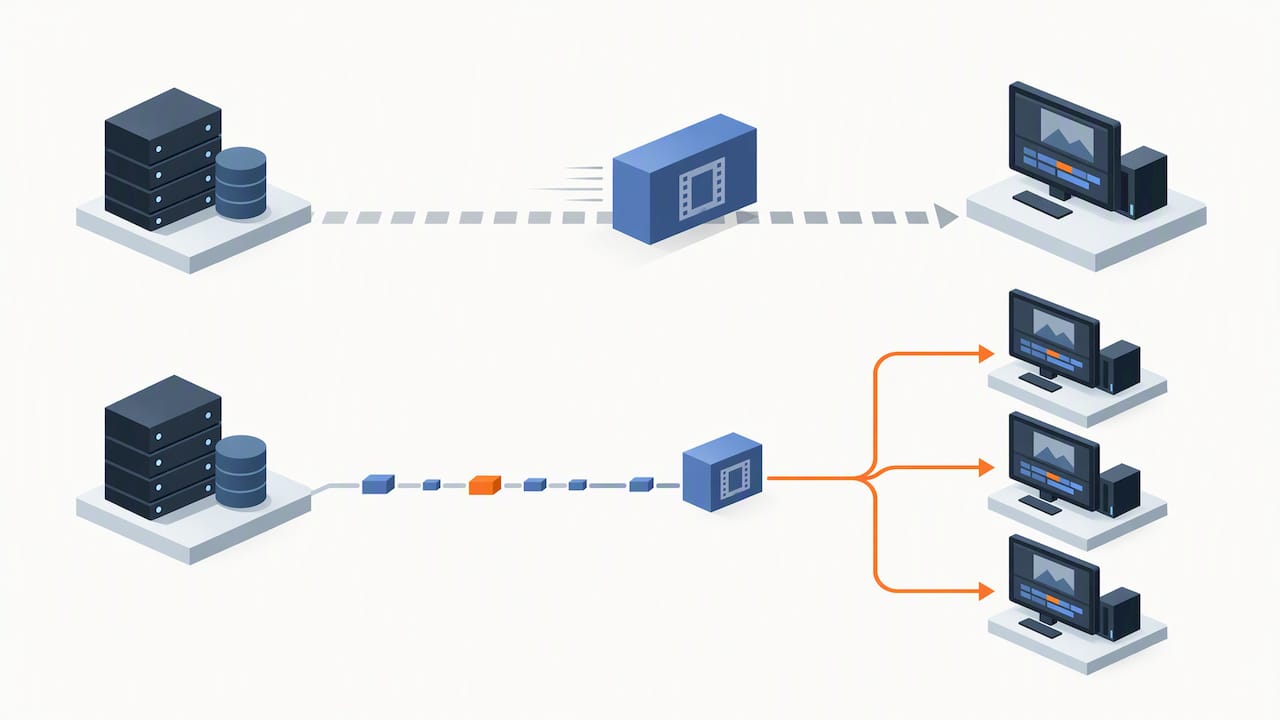
Cloud-native file systems built for media work, such as LucidLink’s collaborative editing platform, stream only the byte ranges an application requests rather than forcing a full download, which lets multiple editors work from the same shared filespace in something close to real time. LucidLink states support for Premiere Pro, DaVinci Resolve, and Final Cut Pro, streaming proxies, RAW, and 4K media directly into the timeline.
For multi-editor projects, a few habits prevent chaos:
- Use bin or project locking methods to avoid two editors overwriting the same sequence
- Relink media using a consistent path structure instead of absolute local links
- Maintain a clear version-naming convention to prevent confusion between review cuts and masters
Network and streaming: what bandwidth and latency you actually need
Streaming a cloud desktop at 4K and 60fps with accurate color takes meaningfully more bandwidth than casual video calls or standard proxy editing, and a stable connection matters more than a fast but inconsistent one. Latency, not just raw speed, is what you feel first: timeline scrubbing and color wheel adjustments both depend on a responsive round trip between your input and the screen update.
High latency shows up as a lag between moving a slider and seeing the result, which makes fine color work frustrating and slows down trim edits. Lower latency connections keep that gap small enough that grading feels close to local.
On the client side, prioritize a wired connection over Wi-Fi where possible, and configure your streaming client for color accuracy rather than maximum compression if your platform offers that choice. Multi-monitor support should be confirmed before a client review session, not during one.
When your connection is inconsistent, fall back to proxy-resolution streaming, stage your heaviest assets locally ahead of a session, or run a hybrid workflow where rough cuts happen locally and only grading or finishing moves to the cloud machine.
Cost and billing: estimating what a cloud workstation project will actually cost
Cloud editing costs break into four pieces: compute runtime, the GPU tier you choose, persistent storage for your project files, and outbound data transfer when you pull finished files back out. Understanding how these stack lets you budget a project instead of guessing.
- A single day of editing on a mid-tier GPU desktop, billed by the minute, costs only for the hours you are actively working, not a flat daily or monthly rate
- An overnight unattended render adds compute time at the same per-minute rate, with no premium for running outside business hours
- A team review session simply multiplies runtime by the number of simultaneous desktops needed, since each editor runs their own instance
Per-minute billing changes the math for project-based work: you are not paying for idle reserved capacity between jobs, which suits the bursty nature of post-production far better than a flat monthly seat.
Pro Tip: Stop or hibernate your cloud desktop the moment a session ends, and pre-stage proxies before billing starts so render time isn’t spent waiting on file transfers.
How Vpzzo fits these requirements for post-production teams
Everything above points to a specific set of needs: real GPU headroom, storage that doesn’t force full downloads, and billing that doesn’t punish bursty schedules. Vpzzo’s cloud desktops are built around dedicated, not shared, Nvidia GPUs with full admin access to a Windows environment, which removes the contention issues that come with shared cloud GPU pools.
A few specifics map directly onto the workflow challenges covered earlier:
- Per-minute billing on Volt and Surge plans means a short color pass or an overnight render only costs for the minutes actually used
- Persistent NVMe storage keeps project files and cached proxies in place between sessions
- Browser-based streaming with real admin rights supports post-production and VFX workflows without local software installs
- Support for multiple GPUs per session covers everything from a single grading pass to heavier multi-GPU render work
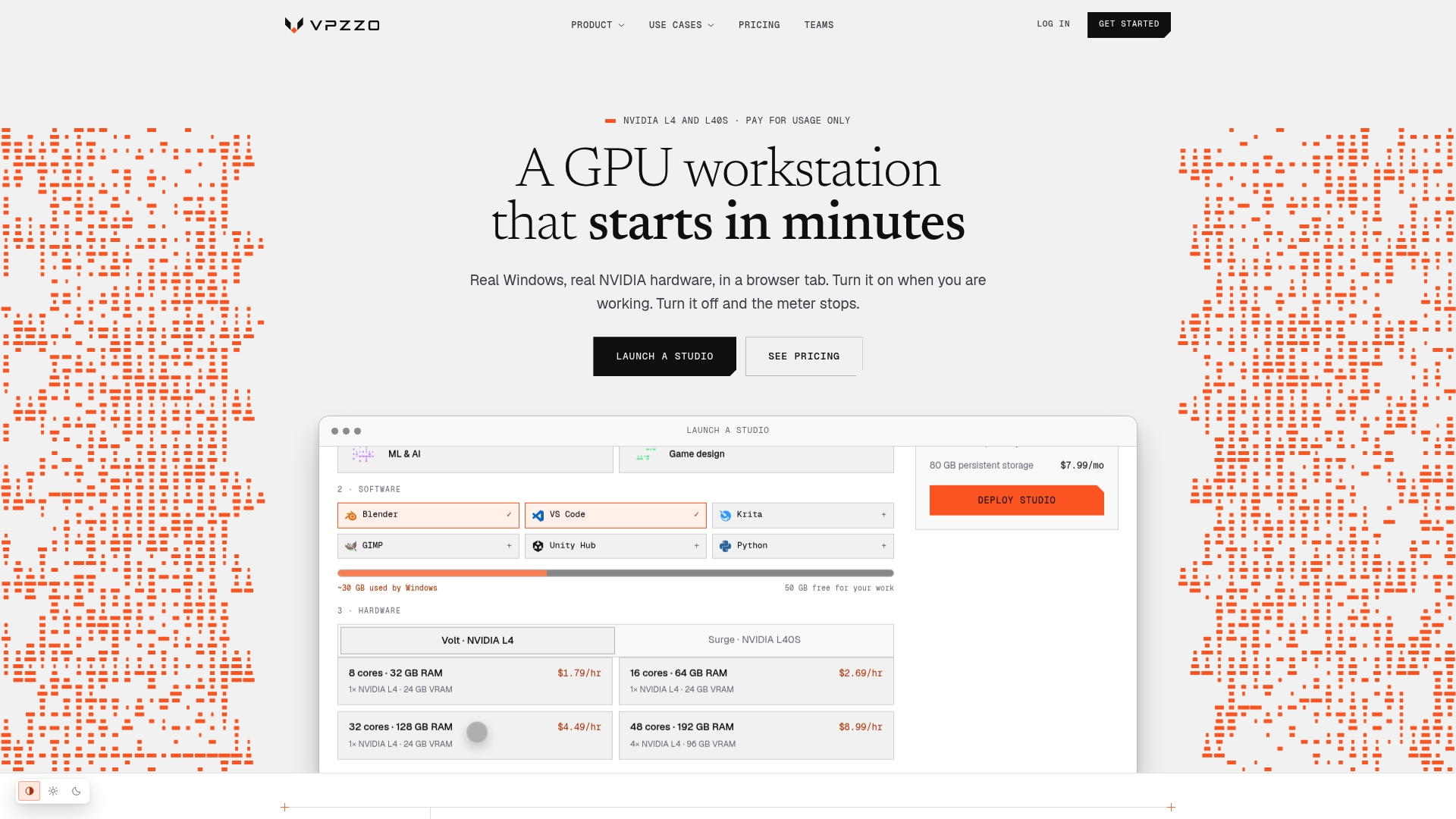
For a team testing whether cloud editing fits a specific deadline, instant scaling and per-minute billing mean you can spin a desktop up for a rush job and shut it down the moment the deliverable ships, paying only for the active time in between.
What I’d check before any studio moves to the cloud
Before committing a team to cloud editing, run a short pilot: test your actual network against the platform, move a small project through the full pipeline, confirm storage mounts behave as expected, and benchmark real costs against a comparable local setup. The mistakes I see most often are underestimating outbound transfer costs, skipping a color accuracy check before a client session, and handing editors a new tool with no walkthrough.
— Erkan
Start a pilot project on a Vpzzo cloud workstation
If the workflow questions above sound familiar, a short pilot is the fastest way to get real answers instead of estimates. Some cloud GPU desktop services provide per-minute billing and persistent storage accessible through a browser without local installs.
- Check current GPU tiers and per-minute rates before scoping a project budget
- Review the full feature list against your specific NLE and plugin requirements
- See how post teams use dedicated GPU desktops on our post-production and VFX use case page
Start with a single session on Vpzzo and measure it against your next deadline.
FAQ
What is the best cloud service for video editing?
The right choice depends on your GPU and VRAM needs, storage architecture, and billing model rather than a single universal answer. Look for dedicated GPU access, persistent storage, and billing that matches your project’s actual runtime instead of a flat reserved rate.
What is the 80/20 rule in video editing?
It’s a prioritization guideline for where to spend your editing time, not a measured industry statistic.
Is AI replacing video editors?
AI tools are increasingly used for tasks like rough cuts, transcription-based editing, and automated color matching, which speeds up repetitive parts of the process. Creative decisions around pacing, story structure, and final grading still rely on a human editor’s judgment.
What is the 3:2:1 rule in video editing?
Definitions of the 3:2:1 rule vary depending on the context, and it is sometimes used informally to describe backup practices (three copies, two formats, one offsite) rather than a formal editing standard. There is no single, universally agreed editing-specific definition, so treat any version you encounter as a rule of thumb rather than a fixed industry rule.
Does Vpzzo charge for idle time on a cloud workstation?
Vpzzo bills by the minute for active compute time on Volt and Surge plans, so stopping a session stops the compute charge. Persistent storage is billed separately at a flat monthly rate to keep your files available between sessions.