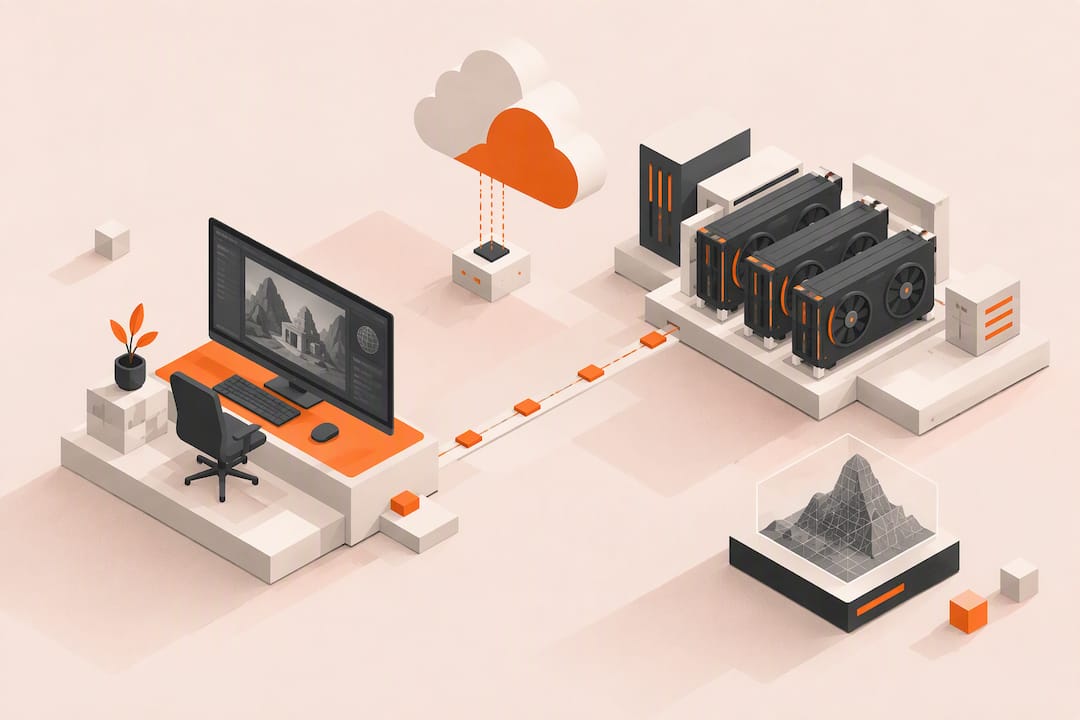
Yes, Unreal Engine runs well in the cloud. Choose a cloud workstation for interactive editing, cloud rendering farms for heavy batch renders, or Cloud Cooking and Swarm for automated builds. Before committing, check three things first: your per-hour costs, the latency of your remote display protocol, and whether your storage setup can keep pace with large Unreal projects.
TL;DR:
Cloud workstations are ideal for live editing and require low latency protocols like NICE DCV to ensure responsiveness and color fidelity.
Batch render farms excel at large, non-interactive jobs such as lighting bakes, where scaling GPU instances reduces overall job time and cost.
Automating builds and cooking processes with cloud infrastructure takes most manual, repetitive tasks off the development team’s hands but demands careful initial setup of assets and scripts.
Latency, region choice, and storage sizing significantly impact the performance and cost-efficiency of interactive Unreal workflows in the cloud.
Running a short pilot with per-minute billed desktops can help determine if cloud workflows outperform local hardware for a specific project before full-scale migration.
Table of Contents
-
Setting Up Cloud Workstations for Interactive Unreal Development
-
Build, Cook, and Automation: Cloud Cooking, Swarm, and CI/CD Patterns
-
Practical Example: How a Cloud Desktop Service Fits Unreal Workflows
Overview of Cloud Options for Unreal Engine
Three distinct cloud approaches cover almost every Unreal workflow, and picking the wrong one wastes both time and budget.
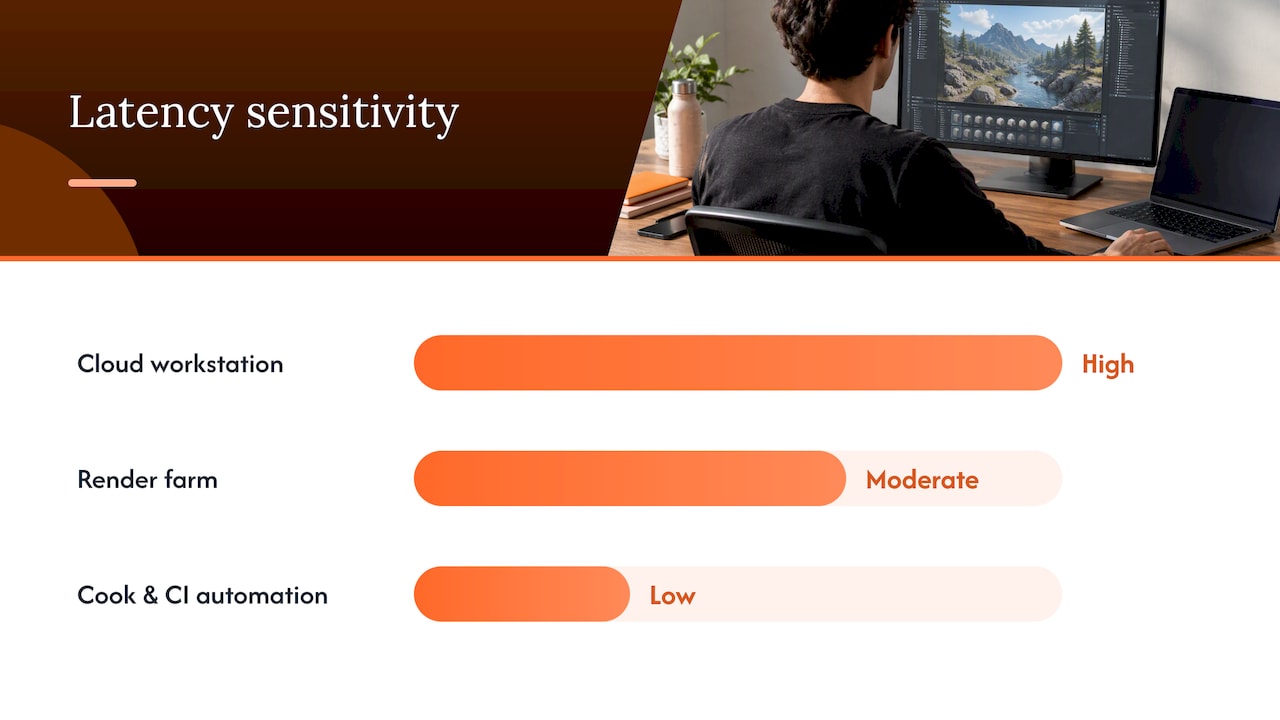
A cloud workstation is a remote desktop with a dedicated GPU that you control through a browser or remote protocol, suited to artists and designers doing hands-on editor work. A render farm distributes heavy, non-interactive rendering jobs (movie renders, lighting bakes, batch sequencer output) across many GPU instances at once. Cook and build automation, through Cloud Cooking or Unreal Swarm, handles the repetitive job of compiling, cooking, and packaging builds without tying up a human’s machine.
Each option carries different trade-offs:
-
Cloud workstations need the least setup but cost the most per hour of active use since a person is driving them live.
-
Render farms demand upfront preparation (packaged assets, derived data caches) but scale cheaply across many machines for a fixed job.
-
Cook and CI automation removes humans from the loop entirely, which is efficient but requires the most scripting and infrastructure work to configure correctly.
-
Latency sensitivity runs highest for interactive workstation use, moderate for real-time render previews, and lowest for cook jobs that run unattended overnight.
-
Team collaboration gets easier with workstations and farms, since multiple artists can hit the same storage and GPU pool instead of waiting on a single local machine.
A short checklist before choosing: does the work require real-time feedback (go workstation), is it a large one-off render (go farm), and does it repeat on a schedule (go automation). Many studios end up running all three in parallel, with artists on workstations, lighting bakes on a Swarm cluster, and nightly builds on a cook pipeline.
Setting Up Cloud Workstations for Interactive Unreal Development
A cloud workstation needs to behave like a local machine for the Unreal Editor to feel usable, which means the setup details matter more than the raw GPU specs.
-
Pick a Windows-based image. Full Unreal Editor functionality, most third-party plugins, and DirectX-dependent tools expect Windows, so a Windows image avoids compatibility headaches that Linux alternatives introduce.
-
Install and verify GPU drivers with admin rights. Confirm the instance exposes a real, dedicated GPU and that you have administrator access to install NVIDIA drivers, since shared or virtualized GPUs without driver control will bottleneck editor performance.
-
Choose a remote display protocol deliberately. Browser-based streaming is the simplest to set up and works across devices, but protocols like NICE DCV are specifically built to preserve color fidelity and reduce latency for high-resolution work, while plain RDP tends to compress colors and introduce lag that color-critical artists will notice immediately.
-
Test color fidelity and input latency before committing to a workflow. Open a test scene with known color values and time your mouse-to-screen response, since a protocol that looks fine in a demo can still introduce enough lag to make fine camera work frustrating.
-
Separate persistent and archival storage. Keep the active project on persistent NVMe storage attached to the running desktop, and push finished builds or old project versions to object storage so you are not paying premium storage rates for files you rarely touch.
-
Plan your stop versus suspend strategy. On per-minute billing, stopping a desktop when you step away (rather than leaving it idle) is the difference between a reasonable bill and a surprising one at the end of the month.
Pro Tip: Benchmark your remote protocol with a moving camera shot before starting real work. Static screenshots hide latency problems that only show up once you’re actually panning or orbiting a scene.
Cloud Rendering and Render-Farm Workflows for Unreal
Batch rendering and real-time streaming solve different problems, and conflating them leads to the wrong cloud setup. Batch rendering, where you submit a sequence and walk away while it processes across many GPU instances, suits final-quality movie renders and lighting bakes. Real-time streaming, where you watch frames come back live, suits review sessions and previs where you need to see results immediately rather than wait for a full job to complete.
GPU choice changes what’s realistic for each. AWS G5 instances support up to 8 NVIDIA A10G Tensor Core GPUs per instance, 100 Gbps networking, and as much as 7.6 TB of local NVMe SSD, specs that matter directly for ray-traced lighting bakes and large open-world scenes where asset streaming speed affects render throughput. A-series and G-series cloud GPUs generally trade some single-card ray tracing headroom for the ability to scale horizontally across many instances, which suits farm-style batch work better than it suits a single artist’s interactive session.
Preparing a scene for cloud rendering typically involves:
-
Building Derived Data Cache PAKs for both Engine and Game content so render agents don’t need to regenerate shader and mesh data on every job.
-
Locking assets during the render window so a mid-job edit doesn’t desync the cook.
-
Checking lightmap resolutions and UV layouts ahead of time, since fixing them after a failed cloud render costs another full round trip.
Job submission generally follows the same pattern: stage assets and DDC to cloud storage, submit the render job to your farm or Swarm cluster, then monitor output logs for errors before pulling the finished frames back down.
One factor worth tracking closely on your invoice is GPU-hours. A render job’s total cost scales directly with how many GPU-hours it consumes across all nodes, not just the wall-clock time you waited, so a job split across ten instances for six minutes costs roughly the same in GPU-hours as one instance running for an hour.
Cost drivers to watch include idle GPU time between job batches, data egress when pulling large rendered sequences back to a local machine, and over-provisioning more GPU nodes than a given scene’s complexity actually needs.
Build, Cook, and Automation: Cloud Cooking, Swarm, and CI/CD Patterns
Automated cooking and distributed builds remove the slowest, most repetitive parts of Unreal development from human hands, but they need specific artifacts prepared ahead of time.
-
Prepare an Installed Build and AutoSDKs first. Cloud Cooking requires a tailored installed build along with AutoSDKs uploaded in a specific structure before an agent can run a cook, and skipping this step is the most common reason a first cloud cook fails.
-
Generate DDC PAKs before submitting a cook. Running
UnrealEditor -run=DerivedDataCache -fill -DDC=CreatePakcreates Engine and Game PAKs that let cloud agents skip rebuilding derived data, and omitting this step can noticeably lengthen cook times. -
Set up your BuildGraph scripts and RunUAT commands ahead of deployment, since Cloud Cooking’s agent initialization expects specific upload layouts and hooks into these scripts directly.
-
Deploy a Swarm coordinator and agent pool for distributed lighting builds. An AWS example pipeline automates this using CDK and CloudFormation to stand up a VPC, a Perforce Helix Core server, a virtual workstation, and an Unreal Swarm cluster with auto-scaling agents.
-
Bake a prerequisite-ready AMI with an image builder. The same AWS sample uses EC2 Image Builder to produce an AMI already containing Unreal prerequisites, which shaves meaningful provisioning time off every new Swarm agent launched.
-
Test cook and build scripts locally before scaling to the cloud, and create a base release per target platform so Swarm agents aren’t rebuilding shared content from scratch on every run.
Performance, Latency, and Cost Trade-offs
Interactive editing tolerates very little lag before it feels unusable, so region selection and protocol choice matter more here than almost anywhere else in a cloud setup. Picking a cloud region physically close to your team, paired with a protocol built for fidelity like NICE DCV rather than generic RDP, is usually the single biggest latency lever available.
-
Network bandwidth needs scale with resolution and frame rate: streaming at 4K and 60fps consumes meaningfully more bandwidth than 1080p at 30fps, and a connection that can’t sustain it will show up as stutter rather than a clean drop in quality.
-
NVMe sizing should account for both your active project and your DDC cache, since undersized local storage forces repeated downloads from object storage mid-session.
-
Ray-traced workflows generally benefit from a single powerful GPU per artist for interactive work, while rasterized batch renders scale more efficiently across multiple smaller GPU nodes running in parallel.
-
A simple cost estimate adds up three things: GPU-hours for active compute, storage in GB-months for persistent and archived data, and data egress for anything pulled back to a local machine.
-
Centralizing your DDC cache across a team, compressing staged assets before upload, and scheduling automatic shutdown for idle desktops are the three easiest ways to contain runaway bills.
Pro Tip: Set an automatic shutdown timer on every cloud desktop the moment you provision it. Forgetting to stop an idle session overnight is the single most common source of unexpected cloud bills.
Storage, Version Control, and Collaboration Workflows
Large Unreal projects are binary-heavy, and that single fact shapes almost every storage decision a cloud team makes. Perforce Helix Core remains the practical choice for source control on sizable Unreal projects, and it hosts well in the cloud alongside your workstations or Swarm cluster, as shown in the same AWS deployment pipeline that automates Perforce server setup alongside virtual workstations.
-
Keep active project files on persistent NVMe storage attached to the running desktop for fast read and write access during a session.
-
Push archived builds and DDC backups to object storage such as S3 or Cloud Storage, where cost per gigabyte is far lower than premium attached storage.
-
Use short-lived SAS tokens rather than permanent credentials when staging assets to cloud storage, limiting exposure if a token leaks.
-
Build desktop templates for common roles (lighting artist, designer, programmer) so a new team member can start from a ready-configured image instead of a blank machine.
-
Stage AutoSDKs once on a shared cloud volume rather than reinstalling them on every new agent, cutting repeated setup time across a Swarm cluster.
Practical Example: How a Cloud Desktop Service Fits Unreal Workflows
A per-minute billed cloud desktop gives a team a low-risk way to test whether cloud workflows actually fit their Unreal project, without buying a GPU workstation outright. Dedicated NVIDIA GPUs and per-minute billing mean a team can run a short pilot, measure the results against their own numbers, and decide before spending on permanent hardware.
Three Unreal tasks map directly onto this kind of setup:
-
Interactive editor sessions, where an artist works live in the Unreal Editor on a dedicated GPU accessed through a browser.
-
Multi-GPU render jobs, supporting sessions with one to eight GPUs for heavier lighting bakes or sequencer renders.
-
Persistent NVMe storage, keeping an active project and its DDC cache attached between sessions instead of re-uploading on each run.
A reasonable pilot plan: run one interactive session to check editor responsiveness and color fidelity through the browser, then queue one nightly render to measure output time and per-frame cost against whatever baseline the team already has. Compare frame fidelity, total render time, and the actual per-minute cost once the pilot wraps before scaling any further.
When Cloud Becomes the Right Default for Unreal Teams
Cloud workflows tend to win once a project outgrows a single artist’s desk, whether that means a team spread across cities or a render job too large for any one local machine. Local hardware still makes sense for small solo projects or quick prototyping where setup overhead outweighs any benefit.
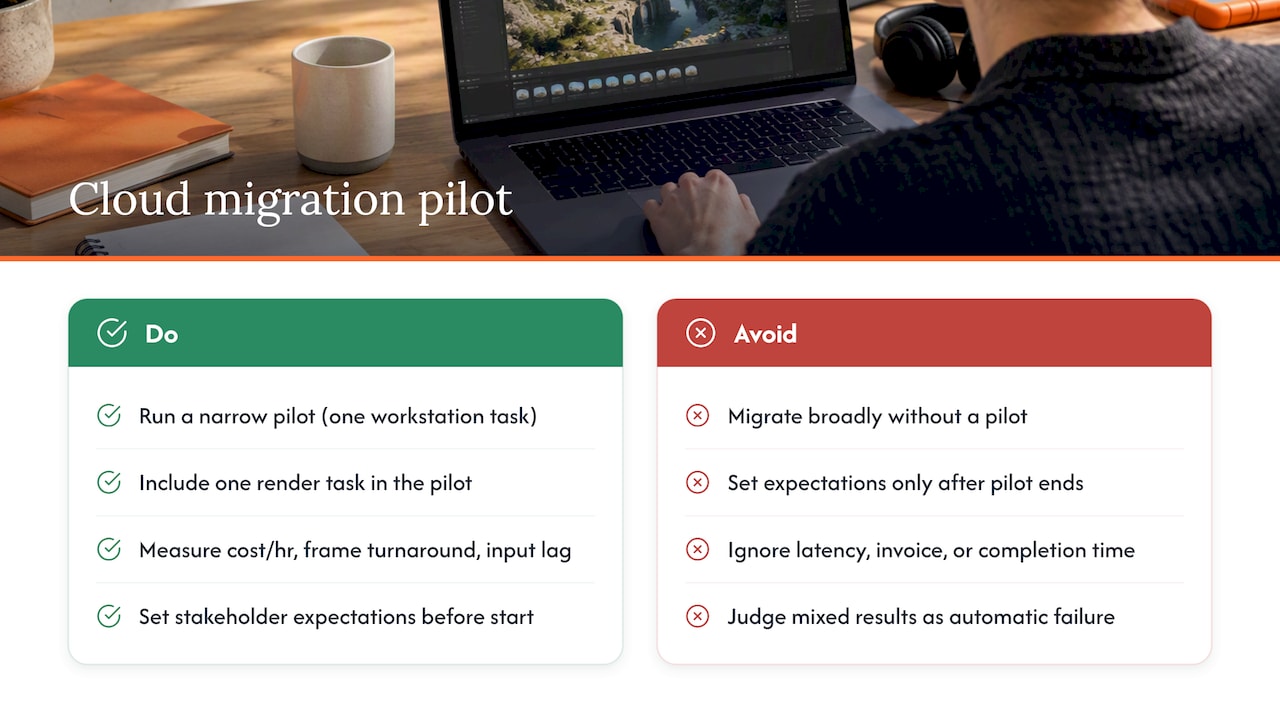
For a CTO or lead planning a migration, keep the pilot narrow: one workstation task and one render task, measured against clear numbers like cost per hour, frame turnaround time, and reported input lag from the artist actually using it. Set expectations with stakeholders before the pilot starts, not after, so a mixed result doesn’t get read as failure.
A fair go or no-go checklist after a pilot: did latency stay acceptable for the work being done, did the invoice match the estimate, and did the team actually finish faster than they would have locally.
— Erkan
How to Get Started With a Cloud Desktop Pilot
A single pilot session is enough to see whether cloud fits your Unreal pipeline, and Vpzzo is built to make that test cheap and fast rather than a long commitment. Dedicated NVIDIA GPUs, per-minute billing, persistent NVMe storage, and direct browser access mean you can spin up a desktop, run real work, and stop paying the moment you close the tab.
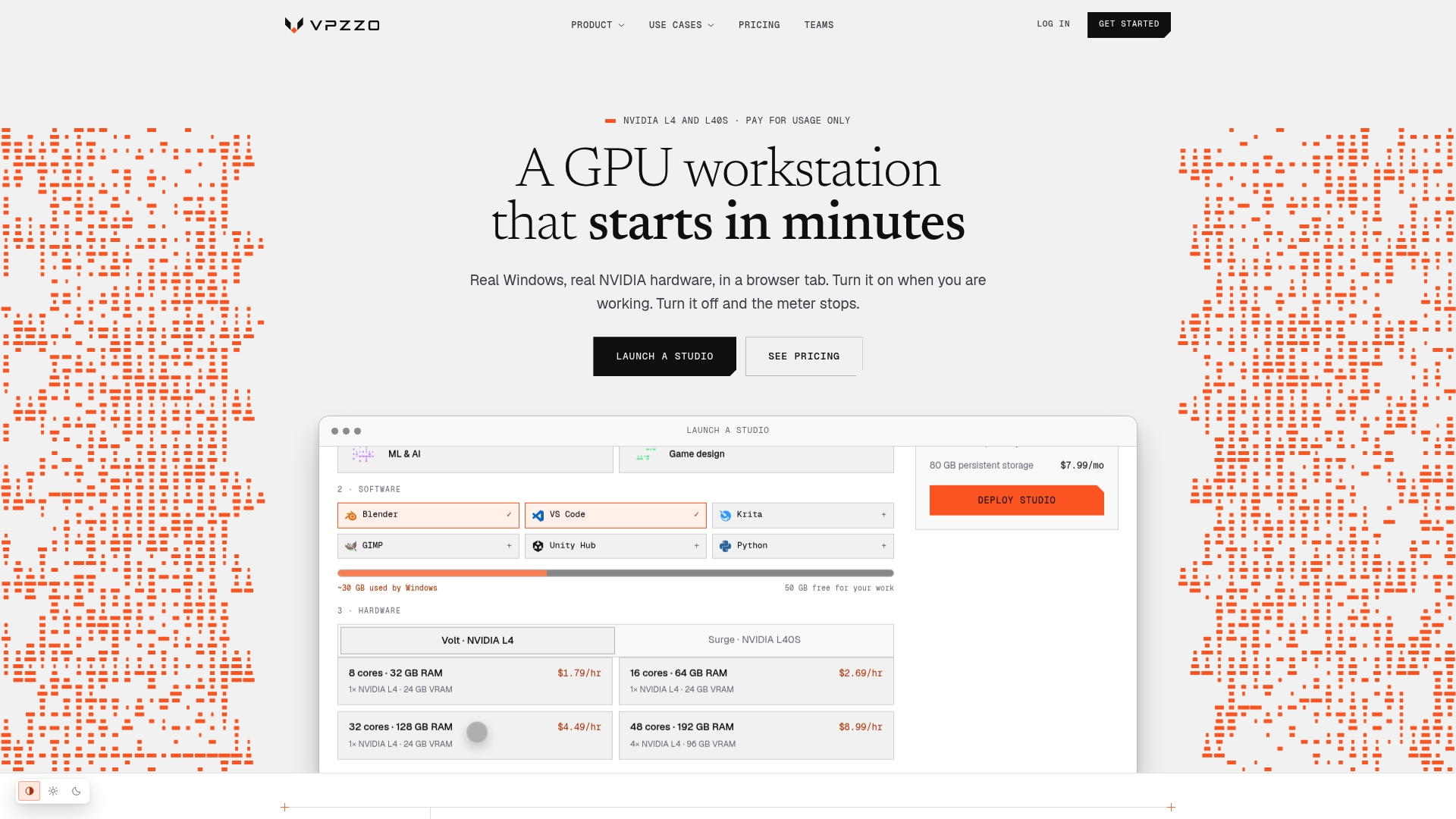
A practical first pilot looks like this:
-
Run Volt (from $1.29 per hour) for a single interactive editing session to check editor responsiveness and color fidelity.
-
Step up to Surge (from $2.79 per hour) for a heavier multi-GPU render job overnight.
-
Attach persistent storage ($7.99 to $99.99 per month depending on tier) so your project and DDC cache stay in place between sessions.
-
Check the NVIDIA GPU lineup and feature list ahead of time to match a GPU tier to your scene complexity.
Compare the real cost and performance against whatever your team already budgets for hardware, then decide from there.
Sources
For implementation details, start with the Cloud Cooking documentation for automated build pipelines, the AWS Swarm deployment sample for cluster automation, the CloudConnector plugin for cloud-native job orchestration, and Epic’s Online Services documentation for platform integration.
-
AWS brings NVIDIA A10G Tensor Core GPUs to the cloud with new EC2 G5 instances
-
aws-solutions-library-samples/guidance-for-game-production-environment-on-aws
FAQ
Is UE5 Killing Games?
No single engine causes games to succeed or fail. Unreal Engine 5 is a tool, and project outcomes depend far more on team scope, budget, and design decisions than on which engine version was used.
Is 32 GB of RAM Enough for Unreal?
It depends heavily on project size and whether you’re running the editor alongside other heavy applications. For many mid-size projects 16 GB works fine, but larger open-world or cinematic projects, especially in a cloud workstation running the editor plus streaming software at once, often benefit from more.
Why Is It Called the Cloud?
The term dates back to network diagrams that drew remote, outsourced computing resources as a cloud symbol to represent infrastructure the user didn’t need to manage directly. The name stuck even as “the cloud” came to mean the actual remote servers and GPU instances, like the NVIDIA A10G-powered instances used for rendering and cloud workstations today.
Is Cloud Gaming Free or Paid?
Cloud gaming and cloud computing services generally run on paid models, typically billed per hour, per minute, or through a subscription. Vpzzo, for example, uses per-minute billing starting from $1.29 per hour for its Volt tier, rather than a flat subscription.