
For interactive creative work, RTX class or L4 accelerated instances usually deliver the best price performance, while A100 or H100 instances make more sense for low-latency, high-concurrency production inference. Software optimization, especially TensorRT and FP8 quantization, changes these outcomes more than the hardware label alone. The breakdown below walks through the benchmarks and cost math behind that recommendation.
TL;DR:
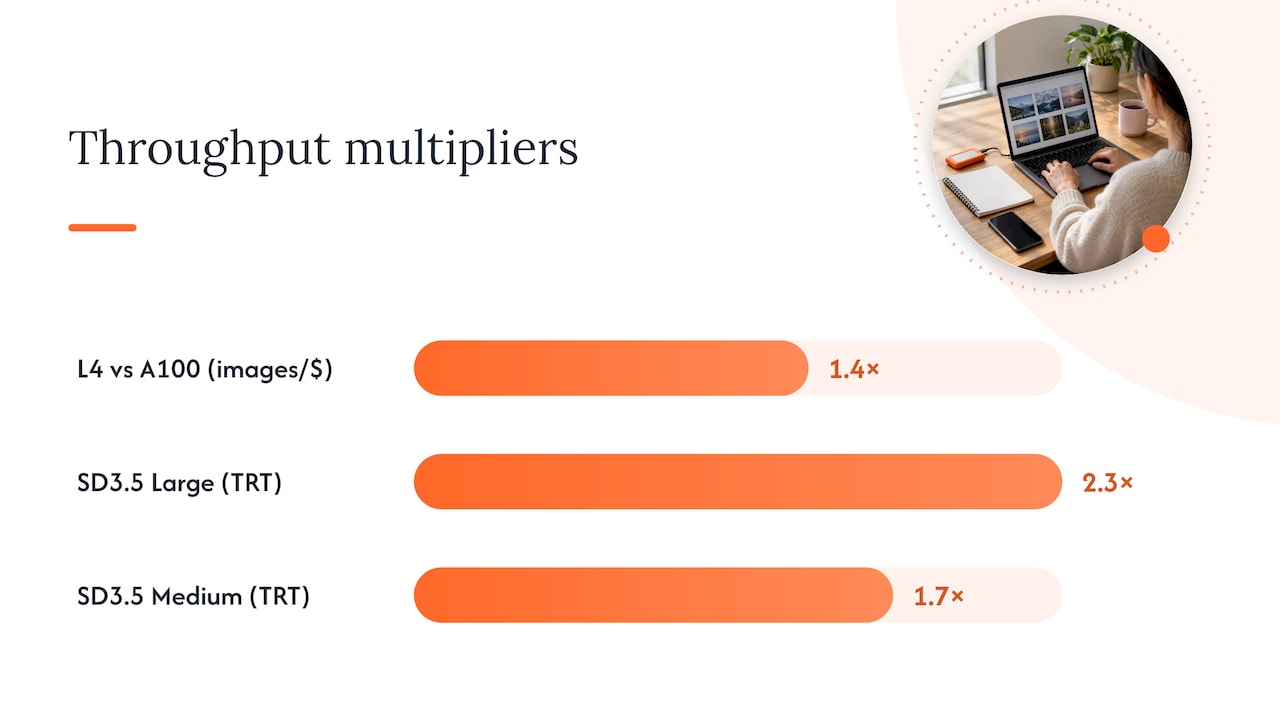
- NVIDIA reports that L4 GPUs delivered about 1.4x more images per dollar than A100 in certain SDXL migrations with TensorRT and Triton.
- TensorRT optimization makes SD 3.5 Large up to 2.3 times faster and Medium 1.7 times faster, while cutting VRAM use about 40% on supported RTX GPUs.
- SDXL in FP16 and SD 3.5 Medium need about 12 to 16 GB of VRAM, while SD 3.5 Large benefits from 24 GB or more.
- Driver mismatches or TensorRT silently falling back to PyTorch can make H100 or L40S slower than RTX 4090, so verify the stack before upgrading.
- Per minute billing suits prompt testing with pauses, while fixed hourly blocks can charge for idle time; compare providers using measured cost per 1,000 images.
Table of Contents
- Benchmarks: what to expect from RTX, L4, A100, and H100 on Stable Diffusion
- Cost math: price per 1,000 images and interactive hourly rates
- Decision checklist: pick GPU, memory, precision, and storage for your workflow
- Practical optimization steps and fixing common performance gaps
- How Vpzzo’s per-minute Nvidia desktops map to this checklist
- Setting up and securing Stable Diffusion on a cloud GPU
- Scaling Stable Diffusion across multiple cloud GPUs
- Comparing cloud providers for Stable Diffusion GPU instances
- What actually matters when you pick a GPU for Stable Diffusion
- Start a short Vpzzo pilot before you commit to a provider
- FAQ
- Sources
Benchmarks: what to expect from RTX, L4, A100, and H100 on Stable Diffusion
Raw GPU specs tell you less than you’d think about actual Stable Diffusion throughput. NVIDIA’s own inference research shows that L4 Tensor Core GPUs deliver cost-effective SDXL inference when paired with TensorRT and Triton Inference Server, generating roughly 1.4 times more images per dollar than A100 in some enterprise migration cases. That gap exists because images-per-dollar depends on utilization and batching, not just peak compute.
Model-level optimization moves the needle even further. Stability AI reports that TensorRT-optimized Stable Diffusion 3.5 models run up to 2.3 times faster on the Large variant and 1.7 times faster on Medium, while cutting VRAM use by about 40% on supported RTX GPUs. That memory reduction matters as much as the speed gain: it lets mid-range cards handle models that previously needed a bigger chip.
Here’s what tends to happen in practice:
- RTX 4090 class cards often match or beat L40S and even H100 on specific Stable Diffusion workloads when the software stack is tuned correctly.
- L4 instances hit a strong balance of cost and throughput for SDXL inference at production scale, particularly with dynamic batching.
- A100 and H100 pull ahead mainly under heavy concurrent load or when running larger models like SD3.5 Large without memory constraints.
- Driver and framework mismatches are the most common reason a “faster” GPU underperforms a cheaper one in real tests.
That last point is backed by direct practitioner experience. Threads on the NVIDIA developer forums document cases where H100 and L40S underperformed RTX 4090 on Stable Diffusion workloads, with the root cause traced to unoptimized drivers or PyTorch versions rather than the silicon itself.
NVIDIA’s inference benchmarks show L4 GPUs can deliver about 1.4x more images per dollar than A100 in certain SDXL migration scenarios, which is why cost-per-image, not peak FLOPS, should drive your GPU choice.
Cost math: price per 1,000 images and interactive hourly rates
Once you know your images-per-second rate, the cost-per-image calculation is simple arithmetic. Say a GPU generates 2 images per second at a rate of $1.29 per hour for Volt, a dedicated Nvidia GPU desktop service. That works out to 7,200 images per hour, or roughly $0.18 per 1,000 images. Double the throughput through TensorRT optimization and that cost per 1,000 images drops closer to $0.09, without changing the hourly rate at all.
Billing models matter as much as hardware here:
- Per-minute dedicated desktops charge only for active compute time, which suits iterative creative sessions where you’re testing prompts and stopping between batches.
- Hourly managed VMs often bill in fixed blocks regardless of idle time, which can inflate real cost for bursty workflows.
- Pay-per-output APIs abstract away the GPU entirely but usually cost more per image once you factor in volume discounts you’d get running your own instance.
As a rule of thumb, lean toward L4 or RTX-class instances when your workload is interactive, latency-tolerant, or cost-sensitive. Reserve A100 or H100 for cases where you’re serving concurrent users at scale or running SD3.5 Large without room to compromise on batch size. Reported market patterns suggest peer marketplace GPU rental can undercut managed instances on sticker price, but it typically trades away the reliability and persistent storage that production workflows need.
Decision checklist: pick GPU, memory, precision, and storage for your workflow
Match your configuration to your model before you worry about provider pricing. SDXL runs comfortably on 12 to 16 GB of VRAM in FP16, SD3.5 Medium needs a similar floor, and SD3.5 Large benefits from 24 GB or more unless you apply the TensorRT FP8 optimizations that Stability AI reports cut memory use by about 40%.
Walk through this sequence for any new project:
- Identify your model variant (SDXL, SD3.5 Medium, SD3.5 Large) and its baseline VRAM requirement.
- Set your target resolution and batch size, since both scale memory use linearly.
- Define your latency constraint: interactive sessions tolerate seconds per image, batch jobs don’t care about per-image latency at all.
- Match the VRAM floor to a GPU class, favoring L4 or RTX-class hardware for most single-user creative work.
- Check provider billing granularity, since per-hour billing wastes money on short interactive bursts.
- Confirm persistent storage and full driver or framework access, since locked-down environments block TensorRT installs.
- Verify multi-GPU support if you plan to scale beyond a single card later.
Pro Tip: Run your actual prompt set on a short paid session before committing to a provider. Theoretical benchmarks rarely match your specific checkpoint, LoRA stack, and resolution.
Red flags worth screening out include providers that lock you into fixed specs, bill in large time blocks regardless of usage, or restrict driver updates needed for TensorRT.
Practical optimization steps and fixing common performance gaps
Most “the GPU is too slow” complaints trace back to a misconfigured software stack, not underpowered hardware. Work through this checklist before assuming you need bigger iron:
- Verify your CUDA driver version matches your PyTorch build. Mismatches are the single most common cause of underperformance reported on NVIDIA’s developer forums.
- Confirm TensorRT is installed and actually invoked rather than silently falling back to standard PyTorch execution.
- Check that Tensor Cores are being used, since some default configurations skip them entirely on certain GPU and driver combinations.
- Profile CPU-side pre and post-processing to rule out the GPU sitting idle while waiting on image decoding or upload.
- Adjust batch size incrementally and watch for the point where throughput stops scaling, which usually signals a PCIe or memory bandwidth bottleneck.
Tools like NVIDIA Nsight Systems and Nsight Compute give you a clear view of where time actually goes during inference, which beats guessing based on wall-clock timing alone. Forum threads consistently show that practitioners who update drivers and frameworks resolve “underperforming” hardware issues without ever touching their GPU choice.
Pro Tip: Keep a small, fixed benchmark prompt set and re-run it every time you change drivers, frameworks, or providers. It turns vague slowdown complaints into measurable before-and-after numbers.
How Vpzzo’s per-minute Nvidia desktops map to this checklist
Every decision point above (VRAM floor, driver access, persistent storage, billing granularity) has a direct answer in how we built our platform. We provide dedicated, not shared, Nvidia GPUs with real admin rights to a full Windows environment, so you can install TensorRT, manage CUDA versions, and tune your own stack without waiting on a provider’s image update cycle. Billing runs per minute, which means an interactive prompt-testing session costs only for the minutes the GPU is actually working.
Persistent NVMe storage keeps your models, checkpoints, and LoRA files in place between sessions, and the whole desktop streams through a browser in 4K at 60 frames per second without any client software to install. For a practical pilot, we suggest spinning up a short session, running your own benchmark prompt set, and measuring images per second alongside total cost for that batch. Compare that number against your current setup before deciding where to scale. Our ML and AI use-case page covers how creators and developers configure these sessions for generative workflows.
Setting up and securing Stable Diffusion on a cloud GPU
A typical deployment starts with selecting a base image or clean environment, installing matching CUDA drivers and PyTorch, then layering TensorRT and your Stable Diffusion checkpoint on top. Version mismatches at any layer cause the slowdowns practitioners report on NVIDIA’s forums, so confirm compatibility before loading large model weights.
Security considerations matter as much as raw setup speed. Keep API keys and any authentication tokens out of shared scripts, restrict inbound network access to the ports your workflow actually needs, and use persistent storage volumes that survive instance restarts so you’re not re-downloading multi-gigabyte checkpoints every session. For teams handling client assets or proprietary training data, confirm whether your provider offers dedicated hardware rather than shared multi-tenant GPUs, since isolation reduces the risk of data exposure between sessions.
Environment configuration also means locking dependency versions once you find a stable combination. A working CUDA, PyTorch, and TensorRT trio is worth documenting in a requirements file or container definition so you can reproduce it on a new instance in minutes rather than re-debugging driver issues from scratch.
Scaling Stable Diffusion across multiple cloud GPUs
Scaling beyond a single GPU usually means one of two paths: horizontal scaling across multiple independent instances for batch jobs, or multi-GPU orchestration within a single inference server for concurrent user traffic. For batch generation, such as rendering thousands of variations overnight, splitting the prompt queue across several single-GPU instances is simpler to manage than coordinating a multi-GPU node, and it fails more gracefully if one instance drops.
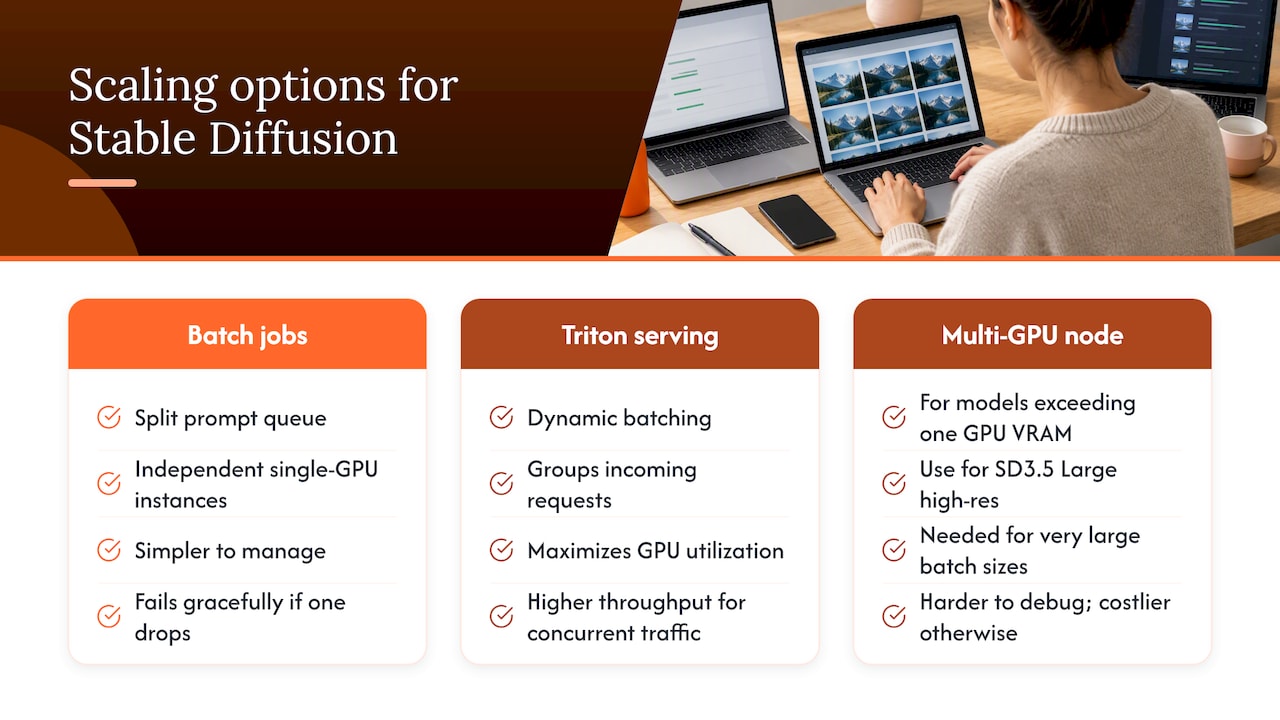
For production-style serving with concurrent requests, NVIDIA’s own guidance points toward using Triton Inference Server with dynamic batching, which groups incoming requests to maximize GPU utilization rather than processing them one at a time. This approach extracts meaningfully more throughput from the same hardware, which is part of why L4 instances can match or beat more expensive GPUs on cost per image at scale.
Multi-GPU sessions on a single machine make sense when your workload needs more VRAM than one card provides, such as running SD3.5 Large at high resolution with large batch sizes. Outside of that case, running parallel single-GPU jobs is usually cheaper and easier to debug than splitting a model across cards.
Comparing cloud providers for Stable Diffusion GPU instances
The major hyperscalers (AWS, Google Cloud, and Azure) all offer GPU instances suitable for Stable Diffusion, typically through their respective L4, A100, or H100 instance families. These platforms suit teams that already run infrastructure there and need tight integration with existing storage, networking, or identity systems. The tradeoff is usually complexity: provisioning, driver management, and billing granularity vary widely between instance types, and getting TensorRT working correctly often requires building a custom image.
Specialized GPU rental platforms built specifically for AI and creative workloads, Lambda Labs among them, tend to simplify provisioning and offer more predictable per-hour pricing than general-purpose cloud platforms. Peer-to-peer GPU marketplaces can undercut all of these on raw hourly price, but that reliability tradeoff shows up most during long interactive sessions where a dropped instance costs you real working time.
For creators who want dedicated hardware with full admin access and billing that matches how they actually work (short, iterative sessions rather than fixed-block hours) a per-minute desktop model fills a different niche than either the hyperscalers or spot marketplaces. Our Nvidia GPU lineup is built around that use case specifically, with persistent storage so you’re not rebuilding your environment every session.
What actually matters when you pick a GPU for Stable Diffusion
The real decision isn’t RTX versus A100, it’s whether your software stack is actually using the hardware you’re paying for. Most “I need a bigger GPU” conclusions should be “I need to check my driver and TensorRT setup” instead, and the forum evidence backs that up repeatedly. My one-line recommendation: start small on L4 or RTX-class hardware, optimize your stack first, and only scale to A100 or H100 once you’ve confirmed the bottleneck is genuinely compute, not configuration. Run a short pilot, measure images per second and cost per 1,000 images, and let that number decide your next step.
— Erkan
Start a short Vpzzo pilot before you commit to a provider
The fastest way to validate everything above is to run your own prompt set on dedicated hardware you control. We offer dedicated Nvidia GPUs with real admin access, per-minute billing starting at $1.29 an hour on Volt, persistent NVMe storage, and full browser-based access with no software installs.
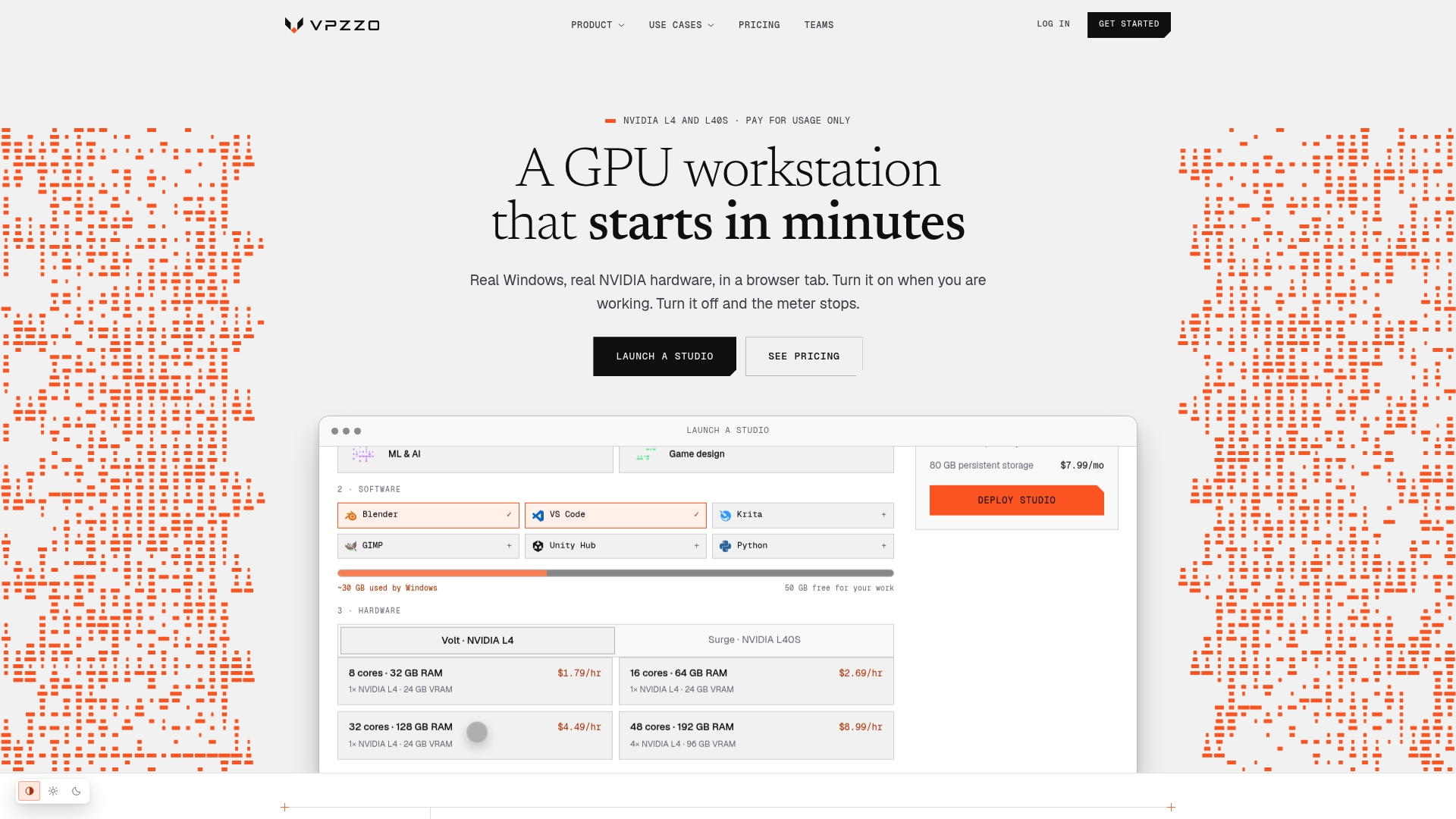
- Spin up a session and install your own TensorRT and driver stack without waiting on anyone else’s image update.
- Pay only for the minutes your GPU runs, then stop the clock the moment your batch finishes.
- Keep your models and checkpoints on persistent storage between sessions instead of re-downloading them each time.
Check current configurations and rates on our pricing page and measure your own cost per 1,000 images before scaling further.
FAQ
What GPU can run Stable Diffusion?
Most modern Nvidia GPUs with at least 8 to 12 GB of VRAM can run Stable Diffusion, including consumer RTX cards, with SDXL and SD3.5 variants benefiting from 16 GB or more. Data center GPUs like L4, A100, and H100 handle larger models and higher concurrency better, though TensorRT optimization can cut VRAM needs by around 40% on supported RTX hardware.
Can I get a cloud GPU for free?
Some providers offer limited free tiers or trial credits for cloud GPU access, though these typically come with usage caps, queue times, or restricted GPU classes unsuitable for sustained Stable Diffusion work. For real project work, usage-based billing (paying only for active compute minutes) tends to be more practical than relying on free tiers.
What is the best cloud GPU for Stable Diffusion?
There’s no single best option: L4-class GPUs tend to offer the strongest cost-per-image for SDXL production inference, while RTX-class cards often win on interactive, single-user sessions once properly optimized. NVIDIA’s own data shows L4 delivering notably better images-per-dollar than A100 in specific migration scenarios, making it a strong default for most creators.
Can I run Stable Diffusion without a GPU?
Stable Diffusion can technically run on CPU, but generation times stretch from seconds to several minutes per image, making it impractical for iterative creative work. A GPU, whether local or rented through a cloud provider, is effectively required for any workflow involving repeated generations or larger model variants.
Why does a more expensive GPU sometimes perform worse?
Driver mismatches, outdated PyTorch builds, or TensorRT not being properly invoked can all cause a theoretically faster GPU to underperform a cheaper one. Practitioner reports on NVIDIA’s developer forums document exactly this pattern with H100 and L40S underperforming RTX 4090 until the software environment was corrected.
Sources
- Generate Stunning Images with Stable Diffusion XL on the NVIDIA AI Inference Platform
- Stable Diffusion 3.5 Models Optimized with TensorRT Deliver 2X Faster Performance and 40% Less Memory on NVIDIA RTX GPUs
- GU H100/L40S performance - CUDA / CUDA Programming and Performance - NVIDIA Developer Forums