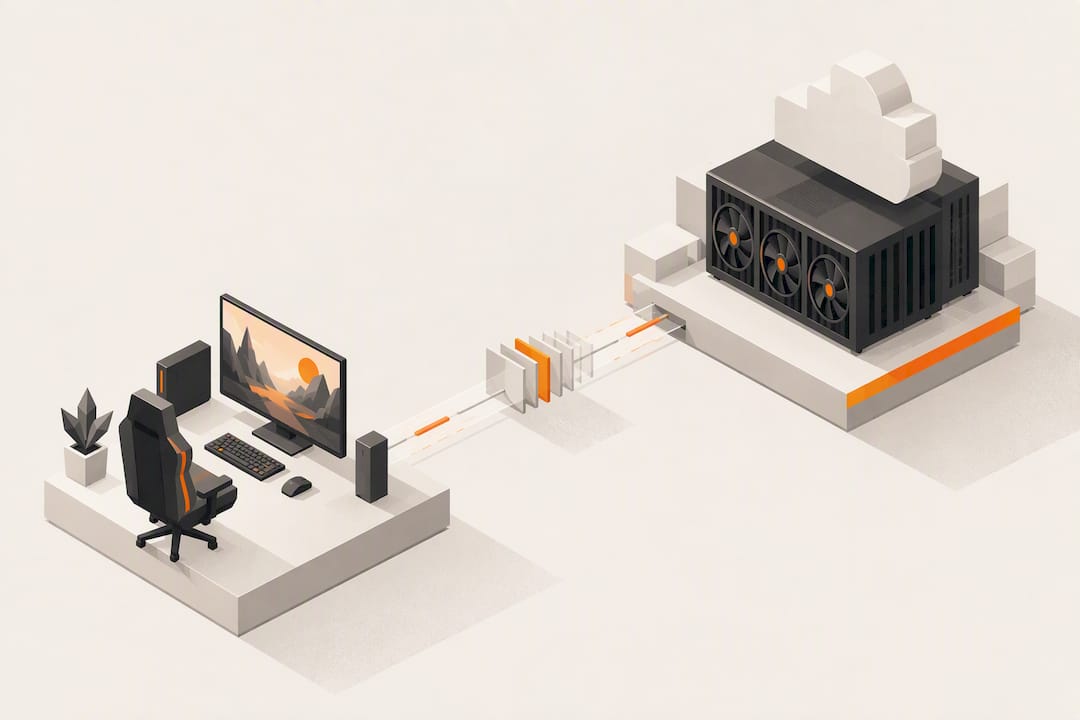
The fastest practical path to ultra-low-latency remote desktop access combines a UDP-based transport (WebRTC or RDP Shortpath), hardware GPU encoding on the host, and prioritized network QoS on a wired, low-jitter link. For gaming or near-LAN feel, aim for under 50 milliseconds of end-to-end delay. For most professional workflows, under 150 milliseconds is workable. Check end-to-end delay and dropped frames first.
TL;DR:
Prioritize UDP-based transports like WebRTC or RDP Shortpath and ensure hardware GPU encoding on the host to achieve sub-50 millisecond latency for gaming.
Use wired connections, enable QoS with DSCP markings, and avoid relay servers whenever possible to reduce network transit delays.
Target an average encoding time under 33 milliseconds with hardware-accelerated encoders, and monitor end-to-end delay to stay below 150 milliseconds for professional use.
Optimize client hardware decoding and disable power-saving modes on host and client systems to prevent encoding, decoding, or transmission stalls.
Choose cloud host regions close to your location, as physical distance sets a hard latency floor that configuration alone cannot overcome.
Table of Contents
-
Host and client settings that remove the encoding bottleneck
-
Advanced compression and codec strategies beyond basic hardware encoding
-
Security considerations that come with low-latency protocols
-
How power management settings affect latency you didn’t expect
How latency actually gets generated in a remote session
Every remote desktop session moves through four stages, and each one adds its own delay. Knowing which stage is slow tells you exactly what to fix instead of guessing.
Capture happens first: the host grabs the screen content, either through a basic screen-capture API or through direct GPU passthrough. GPU-level capture is consistently faster because it skips an extra memory copy that software capture requires.
Encoding compresses that captured frame for transmission. This is where hardware acceleration matters most. Microsoft’s guidance on graphics encoding sets Average Encoding Time under 33 milliseconds as the target, and recommends hardware encoders like NVENC specifically because they hit that mark far more reliably than CPU-based software encoding, which often struggles to stay under the threshold during complex scenes.
Network transit is where round-trip time, jitter and packet loss do their damage. A clean path adds predictable, small delay. A congested path, relay server in the wrong region, or a Wi-Fi link with inconsistent jitter can add tens or hundreds of milliseconds on top of the raw distance cost.
Decoding on the client side closes the loop. At 4K and 60 frames per second, a weak client GPU or outdated decoder can become the dominant bottleneck, even when the host and network are performing well.
The practical takeaway:
-
Choppy video with low ping usually points to encoding or decoding, not the network.
-
High ping with smooth frames once they arrive points to network transit, not the pipeline.
-
Stuttering that gets worse under motion usually means the capture or encode stage can’t keep up with frame rate.
-
Lag that spikes periodically rather than staying constant usually means jitter or a congested relay hop.
What latency numbers to target and which counters to trust
Vague impressions like “it feels laggy” don’t tell you what to fix. Specific counters do.
Microsoft’s own guidance on graphics encoding puts Average Encoding Time under 33 milliseconds as the working target for graphics-intensive sessions, and recommends hardware-accelerated encoding to get there. Software encoders frequently miss that mark under load, which is the main reason sessions that look fine on paper still feel sluggish in practice.
Frame rate targets depend on the task. General desktop work and most creative software runs comfortably at 60 frames per second. Competitive gaming or fast-motion 3D work benefits from pushing toward 90 frames per second when the host and network can sustain it, since dropped frames hurt perceived smoothness more than a modest resolution cut does.
Statistic callout: Azure’s connection quality documentation defines end-to-end delay bands of under 150 milliseconds as good, 150 to 300 milliseconds as okay, and above 300 milliseconds as bad, with dropped frames logged alongside round-trip time in the ConnectionGraphicsData table. That table is the first place to look when a user reports a choppy session.
| Metric | Good | Okay | Bad |
|---|---|---|---|
| End-to-end delay | under 150 ms | 150 to 300 ms | over 300 ms |
| Average Encoding Time | under 33 ms | 33 to 50 ms | over 50 ms |
| Dropped frames | near zero | occasional | frequent |
Output Frames/Second and Frames Skipped/Second, read together, show whether the host is actually producing frames at the rate the session expects or silently shedding them.
Network and protocol choices that cut latency the most
The transport protocol matters more than almost any other variable, because it decides how the session behaves when the network isn’t perfect.
-
Prefer UDP-based transports over TCP-based relays. RDP Shortpath and WebRTC both use UDP with adaptive congestion control, which avoids the retransmission stalls that plague TCP when a packet gets lost mid-stream.
-
Enable direct or peer connections whenever the network allows it, and treat relay servers as a fallback rather than the default, since every extra hop adds processing delay.
-
Configure QoS with DSCP markings so remote desktop traffic gets prioritized over bulk downloads or background syncs sharing the same link.
-
Handle NAT traversal properly: WebRTC’s built-in STUN and TURN support usually handles this automatically, while traditional setups may need explicit port forwarding or a known public IP.
-
Choose a VPN only when security policy requires it, since a VPN typically adds its own encryption and routing overhead; a direct relay with proper QoS is usually faster when a VPN isn’t mandatory.
Pro Tip: DSCP/QoS marking is the step most setups skip, and it’s often the one that prevents jitter from undoing every other optimization you’ve made.
Shortpath-style reverse-connect transports exist specifically because TCP relays force a round trip through a central server even when both endpoints are close together. Cutting that hop out is frequently the single biggest latency win on an otherwise stable connection.
Host and client settings that remove the encoding bottleneck
Most of the remaining latency budget lives in settings you control directly on both ends of the connection.
-
Enable hardware-accelerated encoding (NVENC or HEVC) and select a low-latency preset rather than a quality-first one, since quality presets trade frame time for compression efficiency.
-
Drop resolution or chroma subsampling when bandwidth is constrained. A session at 1440p with full color fidelity often feels faster than a stuttering 4K stream, because the encoder has less data to compress per frame.
-
Close background processes that compete for host GPU or CPU time: indexing services, automatic cloud saves and update checks all steal cycles from the encoder at the worst possible moments.
-
Confirm the client machine has hardware decoding enabled, current GPU drivers, and a wired Ethernet connection rather than Wi-Fi, since a capable host is wasted on a client that decodes in software.
Pro Tip: If you’ve optimized the host and the network but motion still looks soft, check the client’s decoder first. A weak client GPU is an easy thing to overlook when all the attention goes to the host side.
Testing from Puget Systems on Parsec-style streaming found that streaming itself imposes a measurable overhead on host performance, usually a small percentage but larger during encoding-heavy tasks, which is worth factoring in when you benchmark a workstation for remote use rather than just local use.
Comparing transport approaches without the guesswork
Three broad categories of remote access technology exist, and each makes a different trade-off.
-
Peer-to-peer UDP streams connect host and client as directly as the network allows, minimizing hops and keeping latency close to the physical network floor; the trade-off is that firewalls and strict NAT can complicate setup without a good traversal layer.
-
WebRTC-based browser streaming builds NAT traversal in through STUN and TURN, so it works from a browser tab without client software, and its adaptive congestion control keeps the session usable even on imperfect connections.
-
Reverse-connect transports like RDP Shortpath flip the usual connection direction so the client initiates toward a gateway, which avoids forcing all traffic through a central relay when a shorter path exists.
Each approach trades differently on bandwidth use, encoding cost, how well it handles multiple simultaneous users, and the security surface it exposes. Peer-to-peer setups tend to use bandwidth most efficiently but complicate multi-user access. Browser-based WebRTC sessions simplify access and traversal at a modest bandwidth cost from its congestion control overhead. Reverse-connect gateways shine specifically when a direct peer connection isn’t possible but a nearby relay point is.
How to isolate the bottleneck before changing anything else
Guessing at fixes wastes time. A short diagnostic sequence tells you exactly where the delay lives.
-
Measure raw round-trip time with ping or traceroute, then compare it against the end-to-end delay reported in your session logs. A big gap between the two points to the pipeline, not the network.
-
Pull Output Frames/Second and compare it against Input Frames/Second. A gap here shows whether frames are being dropped on the server side or the client side.
-
Toggle the transport between a direct UDP path and a relay, and separately toggle the encoder preset, remeasuring after each change rather than changing both at once.
Statistic callout: Azure’s connection quality guidance treats end-to-end delay under 150 milliseconds as the good band, which gives you a concrete pass or fail line after each toggle rather than a subjective impression.
A high RTT with low end-to-end delay points at physical distance, not configuration. A low RTT with high end-to-end delay points squarely at encoding or decoding.
A practical checklist for reaching low-latency operation
Work through these steps in order, verifying each before moving to the next.
-
Confirm connectivity basics: check your public IP, verify the relevant ports are reachable, and decide whether a VPN is required by policy or just adding overhead.
-
Switch to a wired connection, enable QoS with DSCP tagging for remote desktop traffic, and set the transport to prefer UDP or Shortpath over a TCP relay.
-
On the host, enable NVENC or another hardware encoder, select a low-latency preset, and drop resolution if bandwidth is the binding constraint.
-
On the client, confirm hardware decoding is active and drivers are current, then re-check end-to-end delay and dropped-frame counters to confirm the changes actually helped.
Each step should produce a measurable change in the counters from the previous sections. If a step doesn’t move the numbers, the bottleneck is elsewhere, and it’s worth revisiting the diagnostic sequence rather than layering on more changes.
When a dedicated cloud GPU desktop solves this for you
Some of the latency causes above are structural: a laptop with no discrete GPU, an office without control over network QoS, or a team that needs the same high-fidelity session available from anywhere. In those cases, running the workload on a dedicated remote GPU rather than fighting local hardware limits is often the more direct fix.
We built Vpzzo around dedicated Nvidia GPUs streamed through the browser, with per-minute billing and 4K 60fps color-accurate output, specifically because host-side encoding tax disappears when the GPU doing the rendering is the same GPU doing the encoding.
When evaluating any cloud desktop vendor for this purpose, check:
-
Which GPU model is behind the session, since encoder quality varies by generation.
-
How close the region or gateway is to your physical location.
-
Whether the transport supports UDP or Shortpath-style paths rather than forcing a TCP relay.
-
Whether sessions persist between uses or require a fresh setup each time.
Our Nvidia GPU lineup and feature set are built to answer those questions directly.
Advanced compression and codec strategies beyond basic hardware encoding
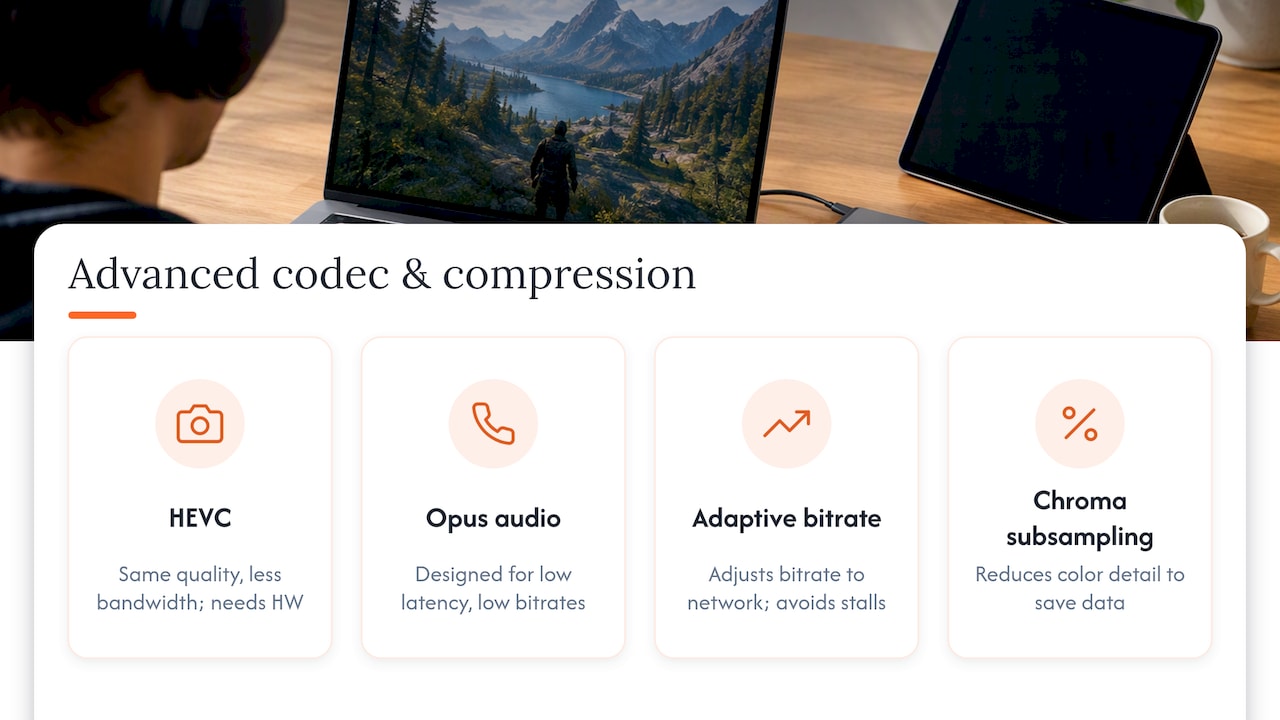
Hardware encoding solves the raw speed problem, but codec choice and compression strategy still shape how much bandwidth a given quality level costs, which matters once you’re past the basic NVENC-versus-software decision.
Modern remote sessions increasingly favor HEVC over older H.264 for video, since HEVC compresses the same visual quality into less bandwidth, which matters directly on constrained links where every extra megabit adds queuing delay elsewhere in the path. The trade-off is slightly higher encode complexity, which is why pairing HEVC with a hardware encoder rather than software matters more than with H.264.
Audio deserves separate attention from video. The Opus codec is widely used for real-time voice specifically because it is built for low latency rather than adapted to it, and it holds up well even at low bitrates, which keeps voice channels usable on the same constrained link that’s also carrying video.
Adaptive bitrate strategies, where the encoder adjusts compression in real time based on measured network conditions rather than a fixed setting, help avoid the worst-case scenario where a fixed high bitrate overwhelms a momentarily congested link and causes a visible stall. This matters more on variable connections like cellular or shared Wi-Fi than on a stable wired office link, where a fixed high-quality setting usually performs more predictably.
Chroma subsampling, mentioned earlier as a resolution trade-off, is itself a compression strategy: reducing color detail in a way human vision barely notices, in exchange for meaningfully less data per frame.
Security considerations that come with low-latency protocols
Chasing lower latency sometimes pushes people toward settings that quietly weaken security, so it’s worth being deliberate about what you’re trading.
UDP-based transports and direct peer connections, while faster, expose a different attack surface than a traditional TCP relay sitting behind a managed gateway. A direct connection means the client is reachable more directly, which raises the importance of encryption at the transport layer rather than relying on a relay to provide isolation.
Opening ports for direct connectivity, a step sometimes needed for peer-to-peer setups, increases exposure if done without care. Using a VPN adds overhead but also adds a controlled, authenticated path, which is why some organizations accept the latency cost of a VPN as a deliberate security trade-off rather than an oversight.
WebRTC’s built-in approach sidesteps some of this risk because its STUN and TURN traversal mechanisms were designed alongside encryption requirements from the start, rather than bolted on afterward.
Whatever transport you choose, confirm that encryption is active end to end, that credentials aren’t cached in a way that survives a lost device, and that session access can be revoked quickly if a client machine is compromised. None of these checks meaningfully add latency, which makes skipping them a false economy.
How power management settings affect latency you didn’t expect
A surprising number of latency complaints trace back to power settings that have nothing to do with network or encoder configuration.
Laptops and even some desktops default to power-saving CPU and GPU states that throttle clock speeds when the system appears idle between bursts of activity. A remote session can look idle to the operating system between frames even while actively streaming, which triggers exactly this throttling at the worst possible moment.
On the host, setting the power plan to high performance or disabling aggressive GPU power-saving states prevents the encoder from waiting on a GPU that has stepped down its clock speed. On the client, the same applies to the network adapter: some power-saving modes put Wi-Fi or Ethernet adapters into low-power states between packets, adding small but real delay to every frame’s arrival.
Laptops on battery power are particularly prone to this, since battery-saving profiles often throttle both CPU and network radios more aggressively than a plugged-in desktop would. For anyone doing serious remote work from a laptop, switching to the plugged-in high-performance profile before starting a session is a small step that removes an entire category of inconsistent, hard-to-diagnose stutter.
Why physical distance still sets a hard floor on latency
No amount of configuration beats the speed of light, and that fact alone explains a meaningful share of latency complaints that have nothing to do with settings.
Round-trip time has a physical floor set by the distance between client and host, plus the number of network hops in between. A session connecting across a continent will always carry more baseline delay than one connecting across a city, regardless of how well everything else is tuned.
This is why checking raw RTT with ping or traceroute, as covered in the diagnostic section, matters before touching any other setting: a high RTT with an otherwise well-configured pipeline usually means the host is simply too far away, not that something is misconfigured.
For latency-sensitive work, choosing a host region close to your physical location matters more than almost any other single decision, since it sets the baseline everything else builds on. A perfectly tuned encoder and transport still can’t out-optimize a host sitting on the wrong continent. This is one of the reasons multi-region availability matters when evaluating any remote desktop or cloud GPU service: the nearest available region usually beats the fastest available hardware if the two are in conflict.
The honest trade-offs nobody tells you upfront
LAN-like latency is achievable, but only when the physical distance between client and host is already short. No amount of encoder tuning closes a gap that geography created in the first place, which is the single most underrated fact in this entire topic.
For professionals who need high-fidelity remote work without owning local hardware, a dedicated cloud GPU, picked in a nearby region, is often the more realistic balance than chasing marginal gains on consumer hardware. Gamers should expect to work harder for the same result, since every added millisecond is more noticeable in fast-paced play than in design or editing work.
If there’s one rule of thumb worth keeping: fix the transport and the network path before spending money on better hardware. A faster GPU on a bad connection still feels slow.
— Erkan
Get ultra-low-latency performance without buying hardware
If the checklist above left you needing a GPU you don’t own, or a region closer to your team than your current setup allows, that’s precisely the gap we built our service to close. We use dedicated Nvidia GPUs streamed straight to your browser with admin rights and no installation required.
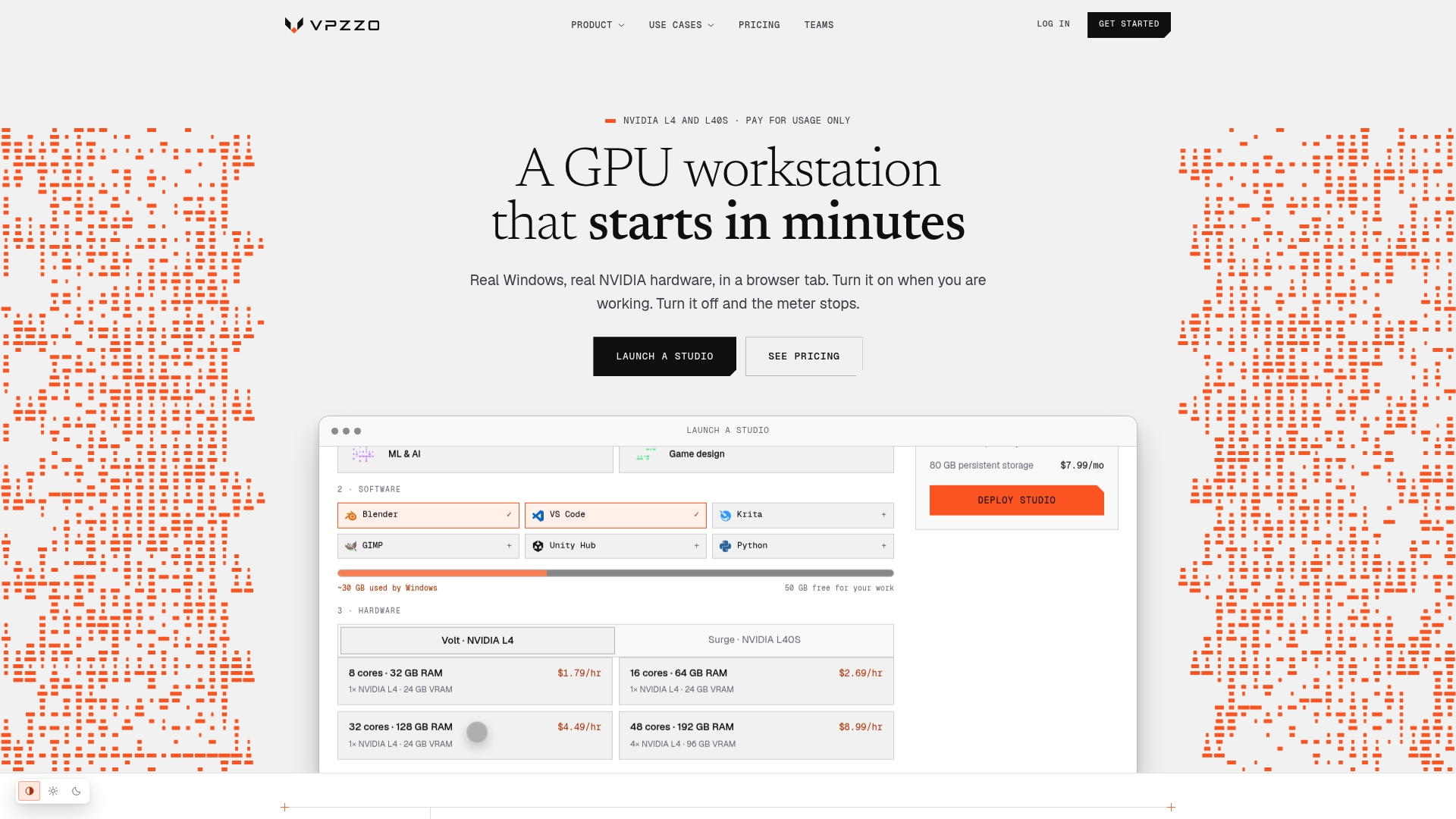
Billing runs per minute through our Volt and Surge plans, starting from $1.29 per hour on Volt, so a session you close costs nothing while it’s stopped. Persistent NVMe storage keeps your setup intact between sessions, and scaling from one GPU to eight happens without reconfiguring anything. Whether you’re rendering 3D scenes, training models, or editing at 4K 60fps, our use cases page walks through which setup fits your workflow.
Check current GPU options and pricing, and start a session when you’re ready to test the latency difference yourself.
FAQ
How to reduce latency on remote desktop?
Switch to a UDP-based transport such as WebRTC or RDP Shortpath instead of a TCP relay, enable hardware GPU encoding on the host, and apply QoS or DSCP marking so remote desktop traffic isn’t queued behind other data. A wired connection on both ends removes the jitter that Wi-Fi commonly introduces.
What is replacing RDP?
Reverse-connect transports like RDP Shortpath and browser-based WebRTC streaming are increasingly used alongside or instead of traditional RDP, since both reduce relay hops and improve NAT traversal. Neither fully replaces RDP everywhere, but both address its weakest points on unstable networks.
Is RDP fast enough for gaming?
Traditional TCP-based RDP can struggle with the consistent low latency gaming requires, particularly over long distances or congested links. A UDP-based transport with hardware encoding and a nearby host region, such as a dedicated GPU cloud desktop, gets much closer to the responsiveness competitive gaming needs.
Why are remote desktops so laggy?
Lag usually comes from one of four places: slow screen capture, software-based encoding that misses the under-33-millisecond target, a congested or distant network path, or a weak client GPU struggling to decode the stream. Checking end-to-end delay and dropped-frame counters usually points to which one is responsible.
What latency is considered good for remote desktop?
Azure’s connection quality guidance defines end-to-end delay under 150 milliseconds as good, 150 to 300 milliseconds as okay, and above 300 milliseconds as bad. Gaming sessions generally feel best closer to the lower end of that range or below it.
Sources
-
Graphics encoding over the Remote Desktop Protocol - Azure Virtual Desktop | Microsoft Learn
-
Effects of Parsec remote desktop on workstation performance - Puget Systems