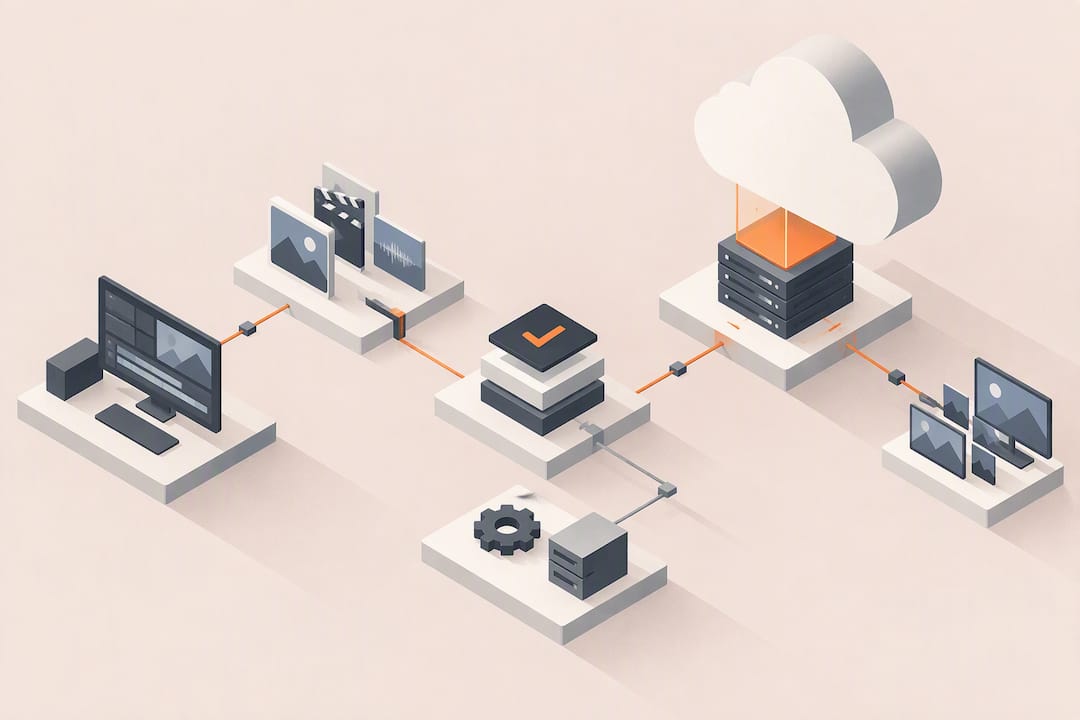
Yes, browser-streamed dedicated Nvidia GPU cloud desktops can run DaVinci Resolve for professional editing, grading, and VFX work, but only when the remote Windows environment meets Resolve’s OS and GPU memory requirements and the streaming protocol preserves color fidelity and AV sync. Providers like Vpzzo build exactly this kind of dedicated GPU cloud desktop, and the rest of this guide shows you how to verify one before you commit a project to it.
TL;DR:
GPU memory should be at least 8 gigabytes for UHD editing and complex grading, with codec support and hardware decode capabilities being critical performance factors.
Streaming must support 4:4:4 chroma and AV sync to ensure accurate color grading, with a calibrated local monitor recommended for final color checks.
Per-minute billing applies only during active sessions, so automated shutdowns, proxy workflows, and batching exports can significantly reduce costs.
A dedicated cloud desktop must match the operating system, GPU, and storage specifications outlined by Resolve’s official requirements for reliable operation.
Collaboration and multi-user access are facilitated by persistent NVMe storage, role-based session controls, and provisioning desktops closer to team locations to minimize latency.
Table of Contents
-
Technical requirements checklist for OS, GPU memory, codecs, and display
-
The setup and validation checklist before you move a project
-
Collaboration features and multi-user workflows in the cloud
-
Data backup, recovery, and version control in the cloud environment
-
Weighing cloud desktops against local hardware for post teams
What “DaVinci Resolve cloud” means in this guide
This article covers one specific setup: a browser-streamed, dedicated Nvidia GPU Windows desktop with persistent NVMe storage and per-minute billing, the kind of machine you rent by the minute instead of buying. It is not Blackmagic Cloud’s project-sync features. That distinction matters because the workflow decisions are different.
A dedicated GPU with real admin rights means you install and configure Resolve the way you would on a local workstation, no shared tenancy, no locked-down permissions. Persistent storage means your project cache, database, and media stay put between sessions instead of resetting.
-
A dedicated GPU avoids the performance variability of shared or virtualized graphics resources.
-
Admin access lets you install plugins, LUTs, and third-party OFX tools the same way you would locally.
-
Persistent NVMe storage keeps your project files and cache intact across sessions instead of forcing a fresh setup each time.
Technical requirements checklist for OS, GPU memory, codecs, and display
Before you provision anything, confirm the target Resolve release against Blackmagic’s own technical specifications page, which lists supported Windows versions and notes that requirements shift between releases. Provisioning a cloud desktop on an unsupported OS build is the most common reason a “cloud Resolve” test fails before it starts.
Once compatibility is confirmed, work through this checklist:
-
Match the Windows build and Resolve release to Blackmagic’s current tech specs, not last year’s notes.
-
Size GPU memory to the job: 8 gigabytes is a reasonable floor for UHD editing, and complex grades or Fusion-heavy timelines need more headroom.
-
Confirm hardware-accelerated decode for your source codecs, since a fast GPU with no codec support still stutters on playback.
-
Check that storage is NVMe-backed for media cache and render scratch, not spinning disk or slow network shares.
-
Verify the streaming session supports color-accurate output, including 4:4:4 chroma where the grade demands it.
-
List every peripheral you rely on, from control panels to pen tablets, and confirm the remote session passes them through cleanly.
GPU memory and codec support matter more than the GPU’s marketing name. A card with a bigger number in its title but thin memory or weak decode support will bottleneck long before raw shader performance does.
Pro Tip: Watch GPU utilization and dropped-frame counts together during your first playback test. High utilization with dropped frames usually points to codec decode or storage I/O, not the GPU itself.
Workflow and color-critical concerns over the wire
Grading over a remote connection introduces two failure modes that never show up on a local system: AV sync drift and chroma degradation baked into the streaming protocol itself. Neither is obvious from a quick glance at the timeline. Professional remote-access guidance for post-production work flags 4:4:4 color mode, AV sync, and peripheral fidelity as the factors that separate a usable remote grading session from one that quietly ships bad color.
-
Confirm the streaming session runs in a chroma mode that preserves the detail your grade depends on, since compressed 4:2:0 previews can mask banding or hue shifts you would catch locally.
-
Keep a calibrated local reference monitor in the loop rather than trusting the streamed preview window alone for final color decisions.
-
Test control surfaces, pen tablets, and audio interfaces over the actual remote connection before a session, since input lag or dropped devices surface only under load.
A remote grading chain is only as trustworthy as its weakest link. Splashtop’s own guidance treats color fidelity as an end-to-end system property spanning the protocol, the chroma mode, sync, and the monitoring chain, not a function of GPU horsepower alone. That framing is why a fast card does not guarantee a good grade if the pipe carrying the picture to your eyes is lossy or laggy.
The setup and validation checklist before you move a project
Run this sequence in a single test session before committing real deadlines to a cloud desktop.
-
Provision hardware that matches your target spec, then restore a small representative project rather than a full timeline.
-
Play back your heaviest codec at full resolution and watch for dropped frames or stutter.
-
Export a short graded clip from the cloud desktop and compare it, on the same calibrated monitor, against a local export of the identical clip.
-
Connect every peripheral you plan to use, panels, tablets, audio interfaces, and confirm each response correctly under load.
-
If color or performance is off, work through fixes in order: bump GPU memory first, then switch to a proxy workflow, then check the network path for packet loss or latency spikes.
The color comparison step matters more than it sounds. A Blackmagic tech-specs match and a strong GPU can still produce a mismatched export if the streaming protocol quietly reduces chroma resolution somewhere in the pipeline. Catching that on a five-minute test clip is far cheaper than catching it on a client delivery.
Pro Tip: Keep the local reference export and the cloud export as separate files with clear names. A side-by-side scrub on the same monitor reveals sync and color drift that a quick glance never will.
What drives the bill on a per-minute cloud project
Per-minute billing means you pay for compute only while a session is actually running, separate from storage and data-transfer fees that accrue on their own schedule. Grading and VFX projects tend to run up costs in three places: long idle sessions left running, large export or transfer operations, and persistent storage for camera-original media.
-
Compute runtime is billed by the minute, so an idle desktop left open overnight costs the same as one being actively used.
-
Persistent storage is billed monthly regardless of whether you are actively editing that day.
-
Outbound data transfer, moving finished masters or large camera files out of the cloud, is billed separately from compute and storage.
Automated shutdown after inactivity, editing on proxies instead of full-resolution masters, and batching exports into fewer larger transfers all reduce the meter running. Before committing a large project, run a short test session and multiply its per-minute cost by your expected active hours to get a working estimate rather than guessing.
Supported cloud platforms and infrastructure details
A browser-streamed GPU desktop for Resolve typically runs as a dedicated Windows instance backed by a data center Nvidia GPU, reachable through any modern browser without a client install. The infrastructure layer includes the GPU itself, NVMe storage for the OS and project cache, and a streaming protocol that handles video encode and input passthrough between your browser and the remote machine.
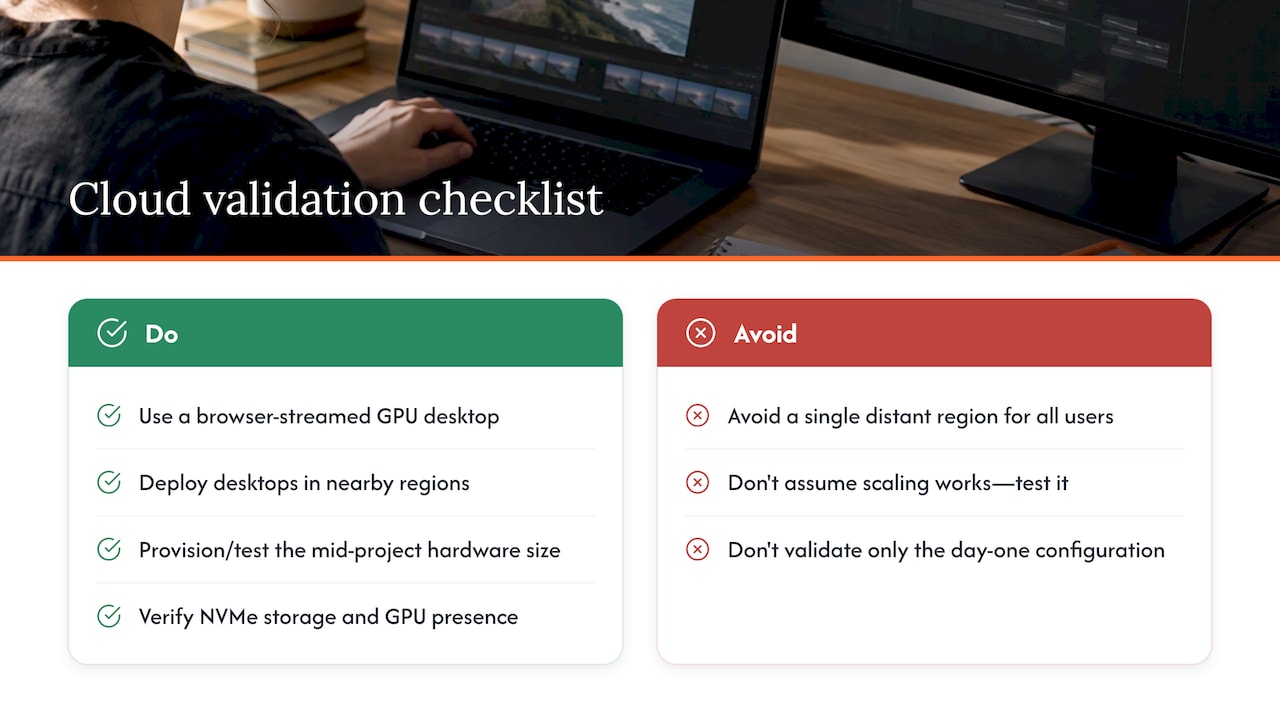
Multi-region deployment matters more than it first appears. Placing your cloud desktop in a data center close to your physical location cuts round-trip latency, which affects both interactive responsiveness and how quickly a session feels when you scrub a timeline or drag a node. Teams working across time zones sometimes provision desktops in different regions for different collaborators rather than forcing everyone onto one distant instance.
Scaling hardware on demand is one of the practical advantages of this model over a fixed local workstation. A project that suddenly needs multiple GPUs for a heavy Fusion composite or a multi-GPU render can be resized without buying new equipment, then scaled back down once the heavy lift is done. That flexibility is worth confirming during your validation test, not assuming from a spec sheet: provision the configuration you expect to need mid-project, not just the one you need on day one.
Security and privacy considerations for cloud editing
Moving footage and project files off local drives raises legitimate questions about who can access that data and how it is protected in transit and at rest. Two practical safeguards matter most: encrypted transfer between your browser and the remote desktop, and access controls that limit which team members can start, stop, or reach a given session.
Dedicated hardware, rather than shared or virtualized instances, also reduces the risk of another tenant’s workload interfering with your session or your data. Since admin access to a cloud desktop is real administrative access, treat credential hygiene the same way you would for any workstation holding unreleased client footage: strong authentication, limited sharing of login details, and prompt deprovisioning when a freelancer’s contract ends.
Persistent storage tied to a single account also means unreleased footage does not need to leave the cloud environment at all until final delivery, which can reduce the number of copies of sensitive media scattered across laptops and portable drives. For productions under strict confidentiality terms, confirm where the data center handling your session is physically located, since that can matter for contractual compliance even when the technical security posture is solid.
Collaboration features and multi-user workflows in the cloud
One advantage of a cloud desktop model over a single local workstation is that multiple team members can reach the same dedicated machine, or coordinated separate machines pointed at shared persistent storage, without shipping physical drives between locations. An editor and a colorist in different cities can work from project files that never leave the cloud environment, cutting the round trips that used to define remote post collaboration.
Multi-user access works best when it is planned rather than improvised. Decide in advance who has access to which session, whether team members share one desktop sequentially or each gets a dedicated instance pointed at common storage, and how conflicts over an open project file get resolved. Resolve’s own project locking mechanisms still apply on a cloud desktop the same way they do locally, so the cloud layer does not remove the need for basic collaboration discipline.
For teams spread across regions, provisioning desktops closer to each collaborator while keeping media on shared persistent storage tends to balance responsiveness against consistency. The heaviest lift, rendering a final master or running a batch export, can be handed to one instance while others continue reviewing or grading, which is a pattern that is harder to replicate with a single shared local workstation.
Data backup, recovery, and version control in the cloud environment
Persistent NVMe storage keeps your project state between sessions, but persistence is not the same as backup. A drive failure or accidental overwrite on a persistent volume still needs a recovery plan, whether that means periodic snapshots, exporting project database backups to separate storage, or maintaining a secondary copy of camera originals outside the primary working volume.
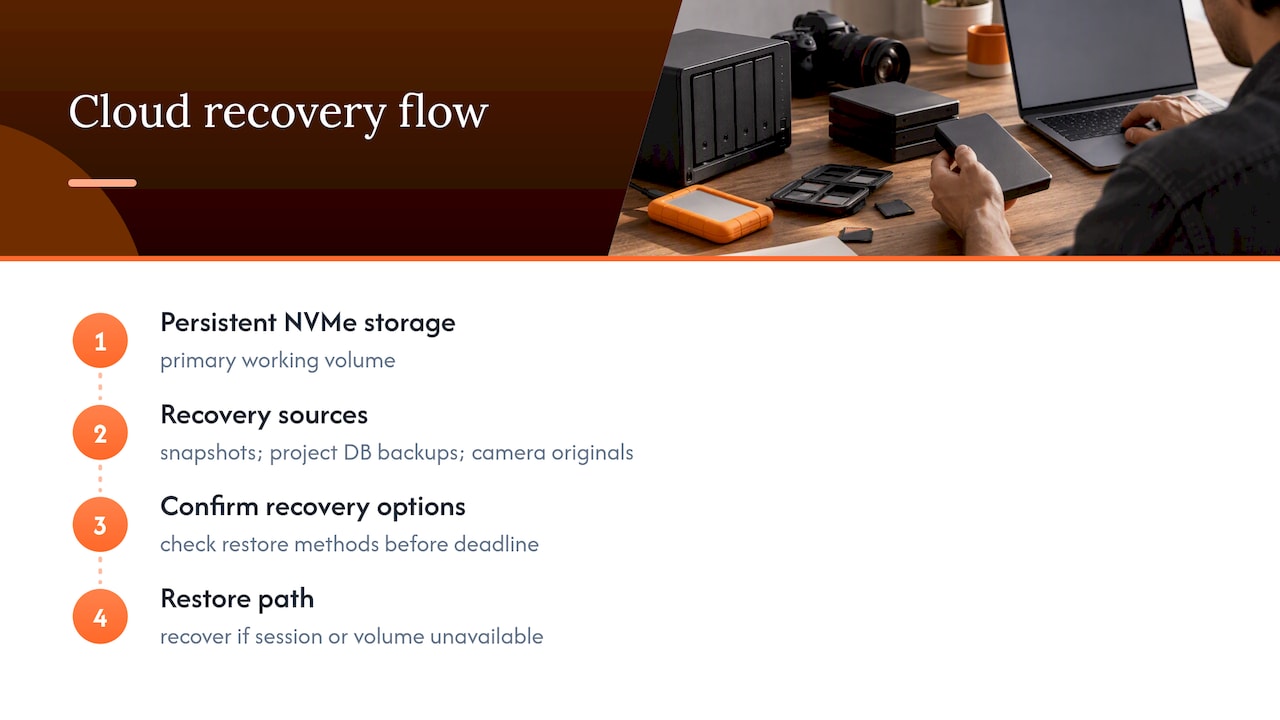
Resolve’s project database and version history features work the same on a cloud desktop as they do locally, so timeline versions and render-cache management are not something the cloud layer changes. What does change is where the underlying files live and how quickly you can restore them if something goes wrong. Before trusting a cloud desktop with a deadline-critical project, confirm what recovery options exist if a session or volume becomes unavailable, and treat that answer as part of your validation checklist alongside color and playback tests.
Weighing cloud desktops against local hardware for post teams
Cloud desktops earn their place when a team needs GPUs on demand rather than sitting idle between projects, when capital budget for hardware is the constraint, or when a single job briefly needs more horsepower than the studio owns. The tradeoff shows up at the edges: ultra-low-latency live finishing and certain shared-storage SAN workflows still tend to favor a local rig, at least until network paths in a given facility prove otherwise.
The honest adoption path is a small pilot project before a full migration, not a leap of faith on a deadline.
— Erkan
Vpzzo’s Volt and Surge against the checklist above
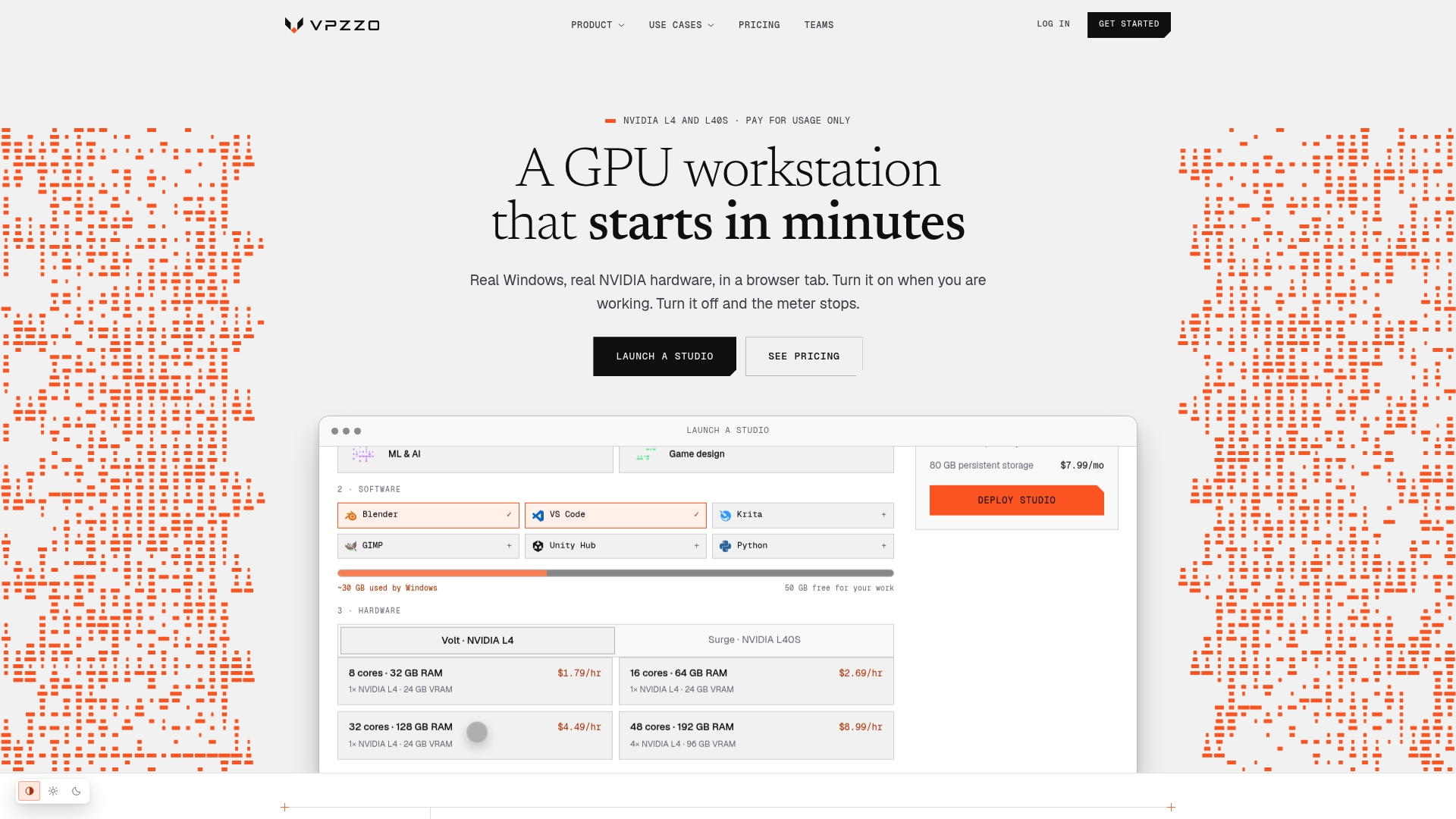
Every item on the checklist above maps directly to what Vpzzo’s features are built around: dedicated, not shared, Nvidia GPUs with real admin access to a full Windows environment, per-minute billing so idle time does not cost you, persistent NVMe storage that survives between sessions, and browser streaming with no software install required.
-
Volt and Surge, priced by the hour starting at $1.29 and $2.79 respectively, give you a low-commitment way to run the color and playback tests from this guide before touching a real deadline.
-
Sessions scale from one GPU up to eight, which covers everything from a straightforward color pass to a multi-GPU Fusion render.
-
Persistent storage and multi-user access support the same collaboration patterns described above, without shipping drives between editors.
If you want to see how the available Nvidia GPU options compare for grading and VFX loads, the GPU comparison page breaks down memory and specs by tier. The most useful next step is a short provisioned session: run the setup and color tests above on a small project before committing a full timeline, and check current Vpzzo pricing to estimate your cost.
Primary sources
-
Blackmagic Design Resolve tech specs: OS and GPU guidance.
-
Splashtop post-production guidance: remote color and AV sync.
Sources
FAQ
Does latency affect AV sync on a cloud Resolve desktop?
Yes, network latency and streaming protocol overhead can introduce audio and video drift that is not present on a local system. Testing a short exported clip against a local reference, as described in the Splashtop post-production guidance, is the most reliable way to catch this before a real deadline.
Can I trust color grading done over a browser-streamed desktop?
Color accuracy depends on the whole chain, not just the GPU: the streaming protocol’s chroma mode, AV sync, and your local monitoring setup all have to hold up. Export and compare a short graded clip on the same calibrated monitor before trusting a cloud session for final color work.
Do I still need a Resolve license and dongle for a cloud desktop?
Resolve’s licensing requirements follow the software itself, so the free version and the paid Studio version with its dongle or license key still apply the same way they do on a local machine. Check the current release’s requirements on Blackmagic’s tech specs page before provisioning.
How much GPU memory do I need for 4K editing in the cloud?
Blackmagic’s own guidance points to 8 gigabytes as a reasonable floor for UHD workflows, with more needed for complex grades or Fusion-heavy timelines. Sizing by GPU memory and codec support tends to produce more predictable performance than picking a GPU by name alone, as noted on Blackmagic’s tech specs page.
What is the best way to move large camera files into a cloud desktop?
Staging masters into persistent cloud storage and editing on proxies keeps both runtime costs and data-transfer fees down compared to constantly moving full-resolution files. Vpzzo’s persistent storage and outbound transfer fees are billed separately from compute time, so batching transfers is the practical way to control that part of the bill.