
Use a cloud desktop for interactive work like look-dev, animation blocking, and plugin testing, and reserve a managed or Deadline-style render farm for batch and final-frame output. Interactive cloud desktops give you a live GPU session for iteration, while managed farms distribute frames across many machines to cut wall-clock time. The rest of this guide walks through setup, compatibility, and the habits that keep both approaches from breaking.
TL;DR:
Cloud desktops are ideal for real-time look development, plugin testing, and scene setup, offering full control but no parallel rendering capability.
Managed render farms efficiently distribute frames for final output, but require scene preparation, asset bundling, and version matching to avoid errors.
File transfer speeds and license compatibility strongly influence cloud rendering turnaround and success, especially with large assets and unsupported plugins.
Consistent version control, automated scripting, and staged testing are crucial for smooth, scalable workflows in hybrid cloud environments.
Vpzzo’s GPU desktops provide cost-effective, on-demand access for interactive work, while cloud farms excel at batch rendering, requiring careful planning for storage and network needs.
Table of Contents
-
Step-by-step: setting up Cinema 4D to render in the cloud (submitter/adaptor workflow)
-
Renderer, plugin, and version compatibility (Redshift, Arnold, V-Ray, X-Particles, Red Giant)
-
Common pitfalls and how to avoid them (missing assets, path mapping, proxy issues, version mismatch)
-
Cost and performance sizing: estimating GPU time, bandwidth, and storage
-
Security and data privacy considerations when using cloud rendering services
-
Integration with existing studio pipelines and version control systems
-
Comparison of pricing models and estimating overall costs for different cloud options
-
Network requirements and bandwidth considerations for uploading/downloading large assets
-
Automation and scripting capabilities for cloud render job management
-
Author perspective: when to adopt cloud-first workflows in your studio
Overview: cloud options for Cinema 4D and when to use each
Three cloud models cover most Cinema 4D workflows, and picking the wrong one for the job is the most common source of frustration.
A cloud workstation is a remote desktop with a dedicated GPU that you control interactively, the same way you would use a local machine, just accessed through a browser. It suits look-dev, lighting reviews, texture painting, and plugin testing, anything where you need to see results immediately and adjust.
A managed render farm, often sold as SaaS, takes a finished scene file and distributes its frames across a provider’s hardware pool. You upload, queue, and download, with little control over the underlying machines. This model fits artists and small teams who want final frames without managing infrastructure.
An IaaS or Deadline-style farm gives you administrative control over the render nodes themselves: you choose the fleet, install the conda packages, configure plugins, and manage job orchestration. According to IBM’s comparison of IaaS, PaaS, and SaaS, the choice comes down to control needs: SaaS suits a fast, low-friction pipeline, while IaaS suits studios that need custom plugin stacks or want to mirror an internal render environment exactly.
Mapped to common Cinema 4D tasks:
-
Look-dev and lighting iteration: cloud desktop, because you need real-time feedback and full admin access to test shaders and lights.
-
Animation blocking and playblasts: cloud desktop or a small managed farm job, since speed of turnaround matters more than raw parallel scale.
-
Final-frame or film-resolution rendering: managed or Deadline-style farm, where parallel frame distribution pays off.
-
Custom plugin pipelines (X-Particles, V-Ray, proprietary tools): IaaS/Deadline-style farm, since you control the conda environment and worker configuration.
Each model trades control for convenience. A cloud desktop gives you the most control but no parallelism. A managed farm gives you speed with less flexibility. IaaS splits the difference if you’re willing to own the setup work.
What you get from cloud rendering: benefits and hard limits
The core benefit of cloud rendering is parallel frame distribution: instead of one machine grinding through 500 frames sequentially, a farm splits the job across dozens of workers and returns the sequence in a fraction of the wall-clock time. AWS Deadline Cloud’s Cinema 4D integration supports this through an integrated submitter that lets you queue a job from inside Cinema 4D and keep working locally while it renders.
Vpzzo positions its per-minute billing model as letting customers pay only for active compute time, according to Vpzzo, which removes the fixed cost of owning GPU hardware that sits idle between projects.
The practical gains break down into a few categories:
-
Time savings: parallel rendering compresses sequences that would take days on one machine into hours across a farm.
-
Workstation freedom: submit-and-continue workflows mean your local machine stays free for other work while the cloud handles rendering.
-
Elastic cost: usage-based billing means you scale spend up during crunch and down between projects rather than carrying a fixed hardware budget.
-
Version consistency: cloud farms let you pin a specific renderer and plugin version across every worker, avoiding the drift that creeps into a shared studio machine over time.
Those gains come with real limits, though. Upload time for large scenes with heavy texture sets can eat into any time saved, especially on asymmetric home connections where upload speed is a fraction of download speed. Network bottlenecks compound this: a scene with several gigabytes of cached simulation data or 8K textures can take longer to transfer than to render.
Licensing is another limit. Some cloud services offer usage-based licensing for Cinema 4D and Redshift bundled into the render job, per AWS’s documentation, while others expect you to bring your own license, which requires floating license servers reachable from the cloud environment. Plugin availability is the third limit: not every plugin your studio relies on ships as a ready-made package, and some, like V-Ray, typically need custom packaging before they will run on a worker node.
Step-by-step: setting up Cinema 4D to render in the cloud (submitter/adaptor workflow)
Getting a Cinema 4D scene rendering reliably on a Deadline-style farm comes down to a repeatable checklist rather than trial and error. The core building blocks, per AWS Deadline Cloud’s Cinema 4D guide, are an integrated submitter, conda packages for supported Cinema 4D versions from 2024 through 2026, an adaptor that keeps a session alive across frames for stability, and usage-based licensing for both Cinema 4D and Redshift.
-
Install the submitter on your workstation with administrator rights, since the installer needs to register GUI dependencies inside Cinema 4D’s plugin menu.
-
Install the adaptor if you’re using a Deadline-style queue. The adaptor keeps a Cinema 4D session “sticky” across frames instead of relaunching the application for every render, which cuts startup overhead and reduces failure points.
-
Prepare the scene: save a clean version, collect all textures and references into a project folder, and bake any dynamics or particle caches so workers don’t need to recompute simulations that depend on machine-specific settings.
-
Include Cineware or After Effects data if relevant: if the render feeds into an After Effects composite, save an After Effects composition file from Cinema 4D. Maxon’s Cineware for After Effects integration passes camera, light, and multi-pass data directly into an After Effects composition, and enabling “Include 3D Data” in that composition file, as described in Maxon’s help documentation, stores render paths and 3D position data automatically for compositing after the cloud job finishes.
-
Select a GPU-enabled fleet if you’re rendering with Redshift, and confirm the queue environment matches your local Cinema 4D version. Version mismatch between your workstation and the render workers is a frequent cause of shading and proxy errors.
-
Choose your licensing model: usage-based licensing bundles the Cinema 4D and Redshift license cost into the render job itself, while bring-your-own-license setups require a reachable license server and typically suit studios with existing floating licenses.
-
Submit the job through the integrated submitter panel, review the frame range, output path, and renderer settings, then send it to the queue.
-
Monitor progress through the farm’s job dashboard, watching for early frame failures that signal a scene, plugin, or path problem before the whole sequence burns compute time.
-
Download outputs once the job completes, either automatically to a mapped local folder or manually from cloud storage, depending on how the queue environment is configured.
Pro Tip: Render a single full-quality test frame on a worker that matches your local software versions before submitting the full sequence, so you catch shader or proxy problems on one frame instead of five hundred.
Renderer, plugin, and version compatibility (Redshift, Arnold, V-Ray, X-Particles, Red Giant)
Renderer and plugin support is the detail that determines whether a cloud submission works on the first try or needs three rounds of debugging. Redshift ships bundled inside the Cinema 4D conda package on AWS Deadline Cloud, according to the Deadline Cloud for Cinema 4D GitHub repository, which means most GPU-based Redshift jobs work with minimal extra configuration beyond selecting a GPU fleet.
Other renderers and plugins vary in how much setup they need:
-
Redshift: included in the standard conda package, with usage-based licensing available alongside Cinema 4D itself.
-
Arnold: C4DtoArnold packages exist for cloud deployment, though they typically need to be added explicitly to the worker environment rather than arriving bundled by default.
-
V-Ray: often requires custom conda packaging or host configuration scripts, since it isn’t part of the default Cinema 4D conda recipe according to the same GitHub documentation.
-
X-Particles and Red Giant tools: support is conditional, meaning some versions install cleanly through custom conda channels while others need manual host-config scripting to register correctly on a worker.
For plugins that don’t ship as ready packages, the practical path is to host the plugin installer on S3 and register it through worker hooks, or to build a custom conda recipe that includes the plugin alongside the base Cinema 4D package. The GitHub documentation notes that this approach lets studios add unsupported versions or niche plugins while keeping worker nodes disposable rather than manually configured one by one.
Version parity matters more than any single plugin choice. If your local Cinema 4D installation is a point release ahead of the worker environment, shading networks, proxy references, or texture tag defaults can shift just enough to produce visibly different output. Matching Cinema 4D, Redshift, and plugin versions between your workstation and the cloud queue is the single most reliable way to avoid a render that looks right locally and wrong on the farm.
Common pitfalls and how to avoid them (missing assets, path mapping, proxy issues, version mismatch)
Most cloud render failures trace back to a handful of repeat offenders, and each has a fast diagnostic.
Missing assets top the list. A scene that references textures or caches from a drive letter or folder that doesn’t exist on the worker will fail silently or render with placeholder colors. Bundle every asset into the project folder before submission, or point the job at shared cloud storage that every worker can reach, and run an asset inspector pass to confirm nothing references a local-only path.

Path mapping causes a close second category of failures. Workstations and workers rarely share identical drive structures, so absolute paths baked into a scene file often break the moment the job leaves your machine. Adaptor-based systems typically include path-mapping options specifically to translate a local path into whatever the worker environment expects.
Proxy issues show up often with Redshift and similar renderers, particularly with nested proxies that reference other proxy files several layers deep. If one nested reference points somewhere the worker can’t resolve, the whole chain can fail rather than just the missing piece.
Version mismatch is quieter but more damaging: renders that complete without errors but look subtly wrong, with different shading, noise patterns, or motion blur than what you saw locally. According to AWS’s release notes and guidance, version parity between local and cloud environments is the leading cause of render failure for GPU renderers like Redshift.
-
Bundle assets into the project folder or point to shared storage before every submission.
-
Run an asset inspector to catch broken references before they become failed frames.
-
Match versions for Cinema 4D, Redshift, and any plugins between workstation and workers.
-
Check proxy chains for nested references that point outside the bundled asset set.
Pro Tip: Keep a version-locked “cloud-safe” scene template with tested proxy and asset paths, and duplicate from it rather than submitting ad hoc production files.
Cost and performance sizing: estimating GPU time, bandwidth, and storage
GPU time for a Cinema 4D render is driven mainly by scene complexity, sample count, texture resolution, and output resolution. A heavily instanced scene with high-resolution 8K textures and a high sample count for Redshift will consume far more GPU time per frame than a simple product shot at 1080p with modest sampling. Sampling settings tend to matter the most: doubling sample counts to clean up noise can nearly double render time per frame, so a lot of cost control in practice comes down to finding the lowest sample count that still looks clean rather than defaulting to a high preset.
GPU workers make sense for Redshift, which is a GPU-native renderer, while CPU workers suit renderers that don’t have strong GPU acceleration or scenes bottlenecked by non-renderer tasks like heavy geometry processing. Say a studio is comparing GPU tiers for a Redshift-heavy animation project: a higher-tier GPU with more VRAM handles large texture sets and complex shading networks without falling back to slower out-of-core memory management, which can otherwise slow a render considerably. Details on available GPU tiers and how they affect Redshift performance are covered on Vpzzo’s Nvidia GPU page.
Bandwidth and storage needs scale with asset size rather than frame count. A project with several gigabytes of textures, caches, and reference footage needs meaningfully more upload time and persistent storage than a lightweight motion graphics job, regardless of how many frames it renders.
Cost-reduction tactics that work in practice:
-
Render test frames first at full quality on a handful of representative frames before committing to the full sequence.
-
Use lower-priority or spot-style instances for non-urgent batch jobs where a longer queue time is acceptable.
-
Cache aggressively so repeated test renders don’t reprocess simulations or subdivision from scratch.
-
Right-size GPU memory to your texture and geometry load rather than defaulting to the largest available tier.
Hybrid workflows and best practices for production teams
The pattern that holds up best in production is straightforward: develop locally, validate small, then send the full job to the cloud. A hybrid cloud workflow for media production keeps the heavy lifting on cloud infrastructure while artists retain the fast iteration speed of working on their own machine.
-
Iterate locally on look-dev, animation, and lighting until the scene is close to final, since local iteration is faster than round-tripping through a cloud queue for every small adjustment.
-
Render small test frames in the cloud to confirm the scene behaves the same way on farm hardware as it did locally, catching version or proxy issues before a full submission.
-
Use job templates for repeatable submissions, following automation patterns similar to OpenJD or adaptor-based configurations so every artist submits with the same settings instead of reinventing the queue setup each time.
-
Collaborate through persistent storage and shared desktops for look-dev reviews, so a director or supervisor can log into the same environment rather than waiting on exported playblasts.
-
Structure outputs for compositing by rendering multi-pass EXRs rather than flattened frames, which gives editors and compositors the flexibility to adjust without a full re-render.
Version control for scene files and assets matters as much in a cloud pipeline as a local one. Treating cloud submissions as disposable, built from a tracked, versioned scene rather than a one-off local file, makes it far easier to reproduce a render or roll back when something breaks.
How Vpzzo’s cloud desktops fit into Cinema 4D workflows
Vpzzo offers a Nvidia GPU cloud desktop service built to give creators high-performance computing power within minutes, without the upfront cost of buying dedicated hardware, according to Vpzzo. For Cinema 4D artists, that translates into a browser-accessible desktop with dedicated NVIDIA hardware, useful for the interactive side of a project: scene setup, look-dev, and plugin testing, before a scene ever reaches a render farm.
The platform’s per-minute, usage-only billing lets a project scale its computing resources up during a heavy look-dev push and scale back down between deadlines, supporting work across 3D rendering, animation, game design, and AI applications. Vpzzo lists relevant use cases including Digital Art & CGI and Architecture & ArchViz, which cover much of the ground Cinema 4D artists work in.
A practical way to use it: run a Vpzzo session for look-dev and plugin compatibility testing, confirm shaders and proxies behave as expected, then hand the validated scene off to a managed farm or Deadline-style queue for the final batch render.
Security and data privacy considerations when using cloud rendering services
Sending scene files, textures, and proprietary assets to a third-party cloud service raises reasonable questions about who can access that data and where it lives. Before submitting a job to any farm or cloud desktop, check the provider’s stated data handling policy: whether assets are deleted after a render completes, whether storage is encrypted at rest, and whether the provider operates in regions that match your client’s data residency requirements.
For interactive cloud desktops, session isolation matters most: confirm that GPU resources and storage are dedicated to your session rather than shared with other tenants, since shared infrastructure raises the risk of another user’s process seeing residual data. For managed or Deadline-style farms, ask how long rendered outputs and uploaded assets persist on provider storage after a job finishes, and whether you can trigger deletion manually rather than waiting on a retention policy.
Studios working under client NDAs should treat cloud rendering the same way they’d treat any third-party vendor: get the provider’s security documentation in writing, confirm encryption in transit for uploads and downloads, and avoid services that don’t clearly state their data retention and access practices. None of this is unique to Cinema 4D, but the file sizes and asset counts typical of 3D projects make the question of “where did my textures go after the render” worth asking explicitly rather than assuming.
Integration with existing studio pipelines and version control systems
A cloud render farm or desktop should slot into a pipeline rather than replace it. Most studios already track scene files, textures, and caches through some form of version control or asset management system, and the cloud layer works best when it reads from that same source rather than becoming a second, parallel copy of project files.
The practical approach is to treat every cloud submission as a build from a tracked version of the scene, the same discipline software teams apply to code. That means submitting from a specific, identifiable scene version rather than an untracked local file, so a render can be reproduced or debugged later by checking out the same version.
For studios using Deadline-style orchestration, job templates and conda-based worker environments extend naturally from an existing pipeline: the same asset paths, naming conventions, and folder structures that work locally can be mirrored in the cloud queue configuration. This is where the distinction between a managed SaaS farm and an IaaS/Deadline-style setup matters most: a SaaS farm expects a fairly standard scene structure, while an IaaS approach gives you the control to match a studio’s existing pipeline conventions exactly, at the cost of more setup work upfront.
Comparison of pricing models and estimating overall costs for different cloud options
Cloud rendering costs generally fall into a few billing shapes: per-minute or per-hour compute charges, flat monthly storage fees, and sometimes per-render or per-frame pricing on fully managed farms. Estimating a realistic total means adding compute time, storage, and any data transfer fees together rather than looking at compute cost alone.
Vpzzo’s own pricing illustrates the interactive-desktop side of this: its Volt service is priced from $1.29 per hour, its Surge service from $2.79 per hour, persistent storage runs $7.99 to $99.99 per month depending on capacity, and outbound data transfer is billed at $1.50 per 10 GB one-off. Say a freelancer needs 20 hours of GPU desktop time on Volt in a month for look-dev and testing: at $1.29 per hour, that’s $25.80 in compute, plus whichever storage tier fits the project’s asset size.
Managed render farms typically price differently, often per rendered minute or per node-hour consumed across a distributed job, which makes a direct comparison to a single desktop’s hourly rate imprecise: farm pricing reflects total compute consumed across many parallel workers, not one machine’s time. The practical way to compare is to estimate your total compute-hours needed (one desktop hour for interactive work, or many worker-hours summed across parallel farm nodes for batch rendering) and multiply by each provider’s published rate, then add storage and transfer fees on top since those are easy to overlook until the invoice arrives.
Network requirements and bandwidth considerations for uploading/downloading large assets
Cinema 4D projects with dense texture sets, cached simulations, or high-resolution reference footage can easily reach several gigabytes per scene, and upload speed, not download speed, is usually the bottleneck. Most home and small-studio internet connections are asymmetric, with upload speeds a fraction of download speeds, which means pushing a large project to a cloud farm can take considerably longer than pulling the finished frames back down.
Practical steps to reduce friction: compress texture sets where quality allows, avoid re-uploading unchanged assets by using a cloud service with persistent storage, and stage large uploads overnight or during off-hours if your connection is shared with other work. For persistent cloud desktops, this problem shrinks considerably, since assets uploaded once remain on the same NVMe storage between sessions instead of being re-transferred with every job.
For teams submitting to a Deadline-style farm regularly, keeping a shared asset library in cloud storage that workers can pull from directly, rather than bundling and re-uploading the same textures with every job, cuts both upload time and the chance of a missing-asset failure. Bandwidth planning matters as much as GPU selection when estimating how long a cloud render cycle will actually take from submission to finished frames in hand.
Automation and scripting capabilities for cloud render job management
Manually submitting every render job through a GUI works fine for occasional use, but studios running frequent cloud renders benefit from scripting the submission process itself. Deadline-style systems support job templates, patterns similar to OpenJD, that define renderer settings, frame ranges, and output paths in a reusable file rather than re-entering them by hand for every job.
This matters most for teams with recurring job shapes: a weekly animation review render, a nightly batch of look-dev variants, or a pipeline step that automatically submits a render the moment an artist saves a scene to a specific folder. Scripting the submitter’s command-line interface, where available, lets a pipeline tool trigger a cloud render as part of a larger automated process instead of requiring a person to open Cinema 4D and click submit.
Monitoring can be automated too: polling a job’s status through the farm’s API and triggering a notification or a follow-up task, such as automatically starting a compositing job once renders finish, removes the need to babysit a render queue manually. For studios building out a pipeline, investing in these automation hooks early pays off once render volume grows past what one artist can track by eye.
Author perspective: when to adopt cloud-first workflows in your studio
Start small. Pilot a project that mirrors your actual pipeline, not a simplified test case, and check plugin parity and asset transfer under real conditions before committing a whole production to the cloud. Set licensing and cost gates in advance so a test doesn’t quietly become an expensive habit.
Judge the pilot on numbers you can defend later: render time per sequence, cost per frame, and how much faster artists actually turned work around. If those numbers hold up on a real project, scaling further is a rollout decision, not a leap of faith.
— Erkan
Try Vpzzo: how to get started
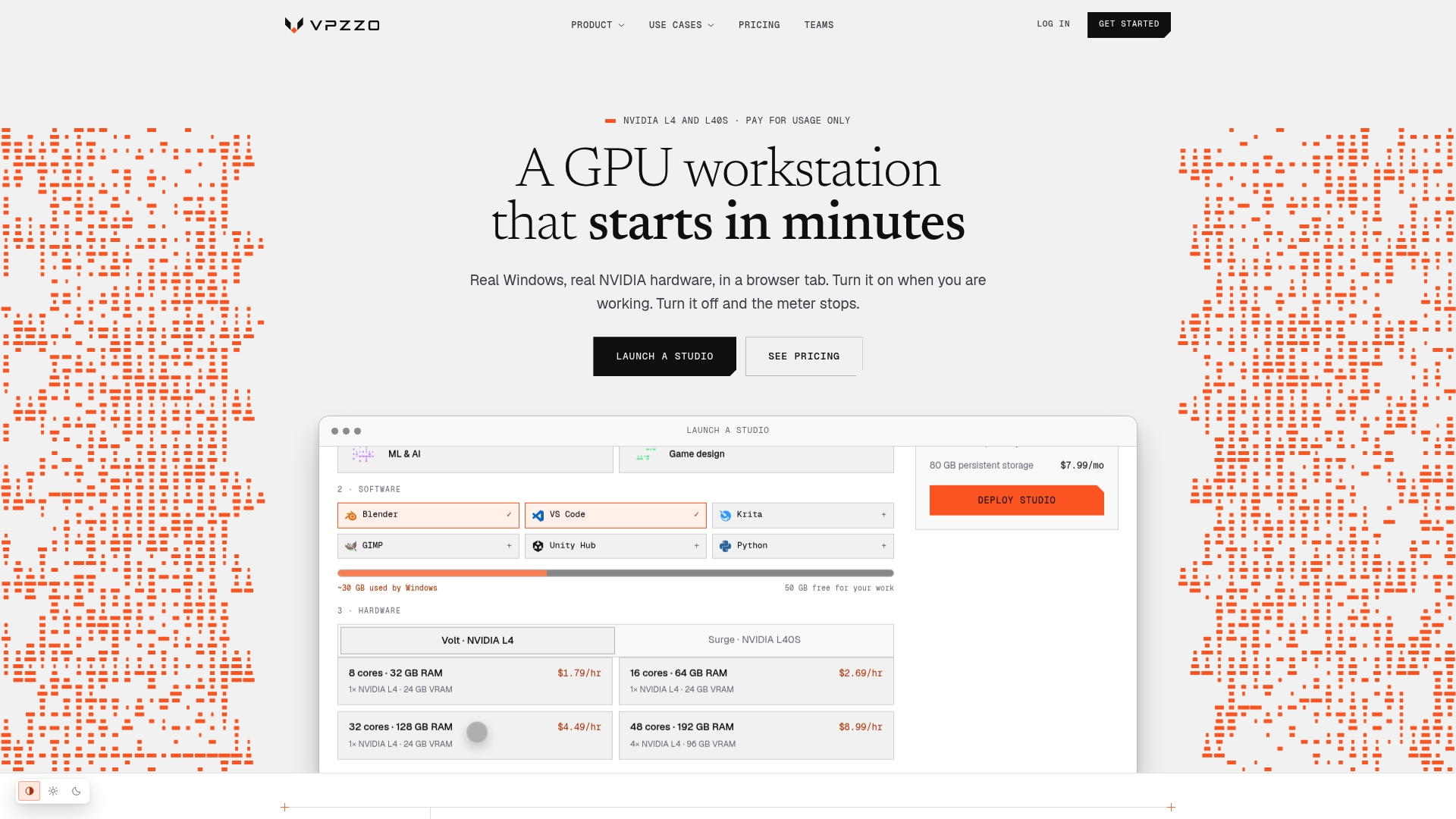
Vpzzo gives Cinema 4D artists a dedicated GPU desktop in the browser, billed per minute, which suits the interactive side of a project (look-dev, plugin testing, scene prep) without asking anyone to buy hardware first.
A practical starting checklist:
-
Choose a GPU tier on the pricing page based on your scene’s texture and geometry load.
-
Upload your project assets to persistent storage so they stay in place between sessions instead of re-uploading each time.
-
Test Redshift behavior on a real frame from your project before deciding whether to keep iterating in the cloud or move to a farm for final output.
Check Vpzzo’s features page for details on persistent storage and browser streaming, or head straight to pricing to estimate what a project would cost before you commit.
Sources
FAQ
What is Maxon Cinema 4D and why do I have it?
Cinema 4D is Maxon’s 3D modeling, animation, and rendering application used across motion design, VFX, and product visualization. You may have it bundled as Cinema 4D Lite through an Adobe After Effects subscription, which gives you basic 3D creation tools inside After Effects via the Cineware documentation.
Is Cinema 4D necessary?
It depends on the complexity of your project: Cinema 4D Lite, included with After Effects, handles basic 3D tasks, but a full Cinema 4D license is needed for advanced modeling, complex plugin workflows, and full render engine support. Studios doing production-level 3D work typically need the full version rather than the Lite edition bundled with After Effects.
Is there a free Cinema 4D plugin for After Effects?
Cineware ships with After Effects and lets you load native .c4d files and render Cinema 4D layers directly inside a composition, passing camera, light, and multi-pass data according to Maxon’s Cineware page. It works alongside Cinema 4D Lite, which is also included with an After Effects subscription for basic 3D creation.
Is Maxon Cinema 4D part of Adobe After Effects?
No, Cinema 4D is a separate application made by Maxon, though a limited version called Cinema 4D Lite is bundled with After Effects. The two connect through Cineware, which allows After Effects to open and render native Cinema 4D scene files within a composition.