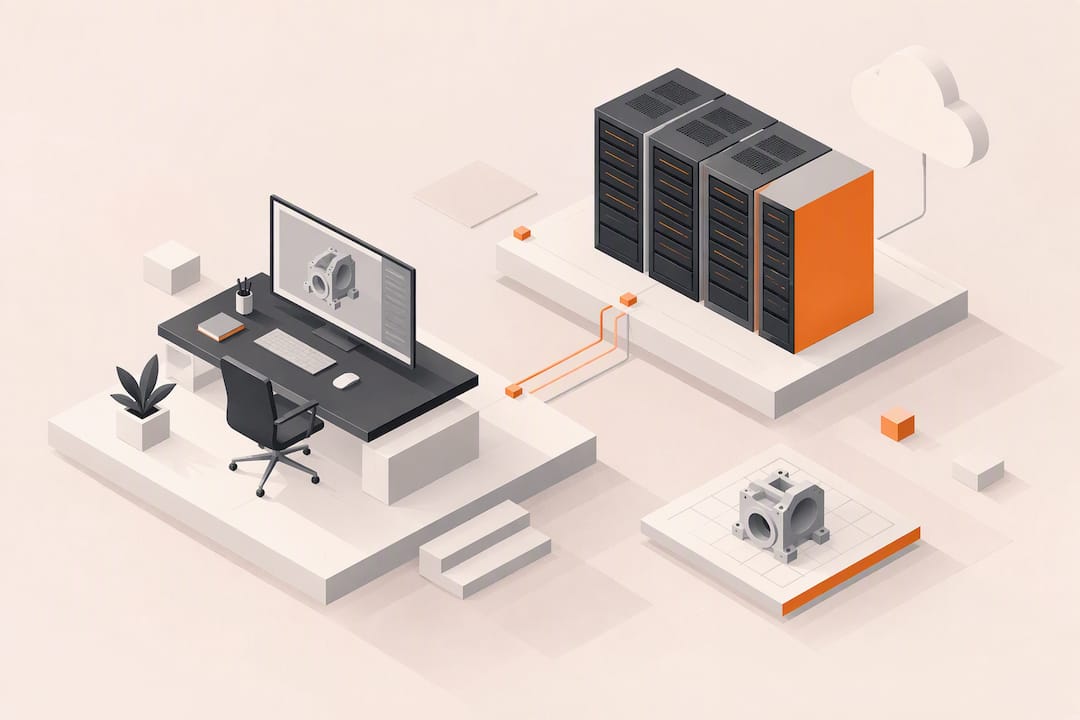
A CAD cloud workstation is a remote, GPU-accelerated desktop that streams professional design software to your browser, replacing or supplementing a physical machine. It makes the most sense for remote or hybrid design teams, burst rendering during deadline crunches, and onboarding contractors without buying hardware. GPU-accelerated hosts, browser streaming and per-minute billing are what make the model work.
TL;DR:
Dedicated GPUs with at least 8 GB of VRAM are essential for smooth viewport navigation and rendering of large assemblies and point clouds.
Cloud workstations should maintain persistent environments with versioned images and NVMe storage to support ongoing project workflows and prevent setup delays.
Price models favor burst workloads like rendering or contractor use, with per-minute billing and proactive session stopping to control costs effectively.
Compatibility requires matching hardware to Autodesk’s system requirements and confirming licensing entitlements for virtual environments before deployment.
Performance validation must include real project file testing for benchmarks, viewport responsiveness, and collaboration stability, not just synthetic scores.
Table of Contents
-
Overview: what makes a cloud workstation suitable for CAD, BIM and visualization
-
Performance components: CPU, GPU, memory, storage and network
-
Provisioning and management: images, infrastructure as code and studio profiles
-
Performance testing and benchmarks: what to run and how to interpret results
-
User experience and workflows: latency, multi-monitor and color accuracy
Overview: what makes a cloud workstation suitable for CAD, BIM and visualization
Not every cloud desktop is built for CAD. The difference usually comes down to whether the GPU is dedicated to you or shared among several sessions. A dedicated GPU gives you consistent frame times for viewport navigation and rendering, while a shared or oversubscribed GPU can introduce stutter during heavy regen or render operations, exactly when you can least afford it.
“Persistent” matters just as much as the GPU. A persistent workstation keeps your installed CAD versions, plugins, project files and drive letters intact between sessions, so you pick up work where you left off instead of rebuilding an environment every morning. Ephemeral sessions, by contrast, reset on shutdown and suit short, disposable tasks better than daily modeling work.
Some CAD tasks benefit far more than others from a cloud setup:
-
Large assembly modeling, where in-memory part counts strain local RAM and GPU memory.
-
Point cloud processing, which needs fast storage and high VRAM for real-time visualization.
-
Architectural visualization and rendering, where burst GPU capacity shortens turnaround on a deadline.
-
Collaborative review sessions, where several stakeholders need to see the same model live.
Before moving any workload, check the software’s own system requirements. Autodesk’s guidance for AutoCAD 2027 recommends 3+ GHz processors, 32 GB of RAM, and a professional GPU with at least 8 GB of VRAM for demanding work, a baseline that cloud hardware needs to clear before you trust it with production files.
Performance components: CPU, GPU, memory, storage and network
CAD performance is rarely about one component. It is about how CPU, GPU, memory, storage and network latency work together under your specific workload, so each deserves its own sizing logic.
-
GPU and VRAM: large assemblies, point clouds and 4K viewports need headroom; Autodesk’s system requirements call for professional GPUs with at least 8 GB of VRAM, rising to 12 GB or more for very large datasets, as noted in its 2024 requirements guidance.
-
CPU: CAD history trees, constraint solving and many plugin operations are still single-threaded, so clock speed often matters more than core count, while rendering and simulation reward multi-threading.
-
Memory: An ample amount of RAM is recommended for professional CAD; point cloud and BIM-heavy projects require significantly more memory.
-
Storage: NVMe SSDs are recommended for large models and 4K work, since spinning or network-attached storage introduces load stalls that break workflow rhythm.
-
Network and region: interactive streaming is latency-sensitive, so placing your workstation in a region close to your location keeps input lag imperceptible.
NVIDIA’s vWS sizing guidance notes that MIG (Multi-Instance GPU) provides stronger performance isolation than time-sliced vGPU, improving predictability in multi-VM scenarios. For a single power user, a dedicated GPU still beats either sharing method on consistency, but understanding the trade-off matters if your firm is sizing a fleet rather than a single seat. Our own breakdown of GPU options walks through how dedicated allocation compares to shared configurations for design workloads.
Software compatibility and licensing for virtualized CAD
Moving AutoCAD, Revit, Fusion or a cloud-native platform onto remote hardware raises two separate questions: will the software run well, and are you licensed to run it there. Work through both before committing a project to the new environment.
-
Match hardware to certified configurations. Autodesk’s published system requirements set the baseline for processor speed, RAM and GPU VRAM; treat them as a floor, not a target, especially for large assemblies.
-
Decide between cloud-native and virtualized desktop models. Cloud-native platforms like Onshape offload compute entirely, letting lightweight devices act as endpoints, a different operational model from streaming a full virtualized desktop, as described in Onshape’s own comparison.
-
Confirm license entitlements before deployment. Autodesk community guidance notes that whether AutoCAD can run in a virtualized environment depends on whether your subscription is single-user or multi-user, a distinction worth confirming with IT before go-live, per discussion on Autodesk’s forums.
-
Check named-user constraints. Multi-user or network licenses generally travel to virtual environments more cleanly than named single-user seats tied to a specific machine.
-
Verify vGPU and ISV certification together. NVIDIA’s documentation stresses confirming certified configurations rather than assuming any cloud GPU will run professional CAD acceptably, a point covered in its vGPU overview.
Provisioning and management: images, infrastructure as code and studio profiles
Reproducibility is what turns a one-off cloud workstation into something a whole studio can rely on. The practical unit for that is a studio profile: a versioned image bundling the OS, GPU drivers, specific CAD version and plugin set for a given project or client.
-
Build one profile per project standard, not one per user, so updates propagate predictably.
-
Version profiles the way you version code, with changelogs for driver or plugin bumps.
-
Keep a minimal base image and layer project-specific tools on top rather than maintaining dozens of near-duplicate images.
-
Test a new profile against a real project file before rolling it out to a team.
Using Infrastructure as Code to provision these images lets teams spin up consistent, production-ready workstations in minutes rather than over a multi-day manual setup cycle, a benefit Red Hat’s overview of IaC lays out clearly. Successful studio deployments bundle OS settings, drivers, CAD versions and plugins into immutable, versioned images, letting IT hand a contractor an exact replica of a teammate’s setup in minutes instead of days, which eliminates much of the configuration drift that plagues physical fleets.
Persistent NVMe storage suits ongoing project work where you need your files and settings to survive between sessions; ephemeral sessions suit one-off rendering jobs or short reviews where nothing needs to persist afterward.
Pro Tip: Keep one “golden” studio profile per active project and freeze it once a deadline is close, so a driver update never becomes a surprise during final review.
Pricing and cost models for cloud workstations
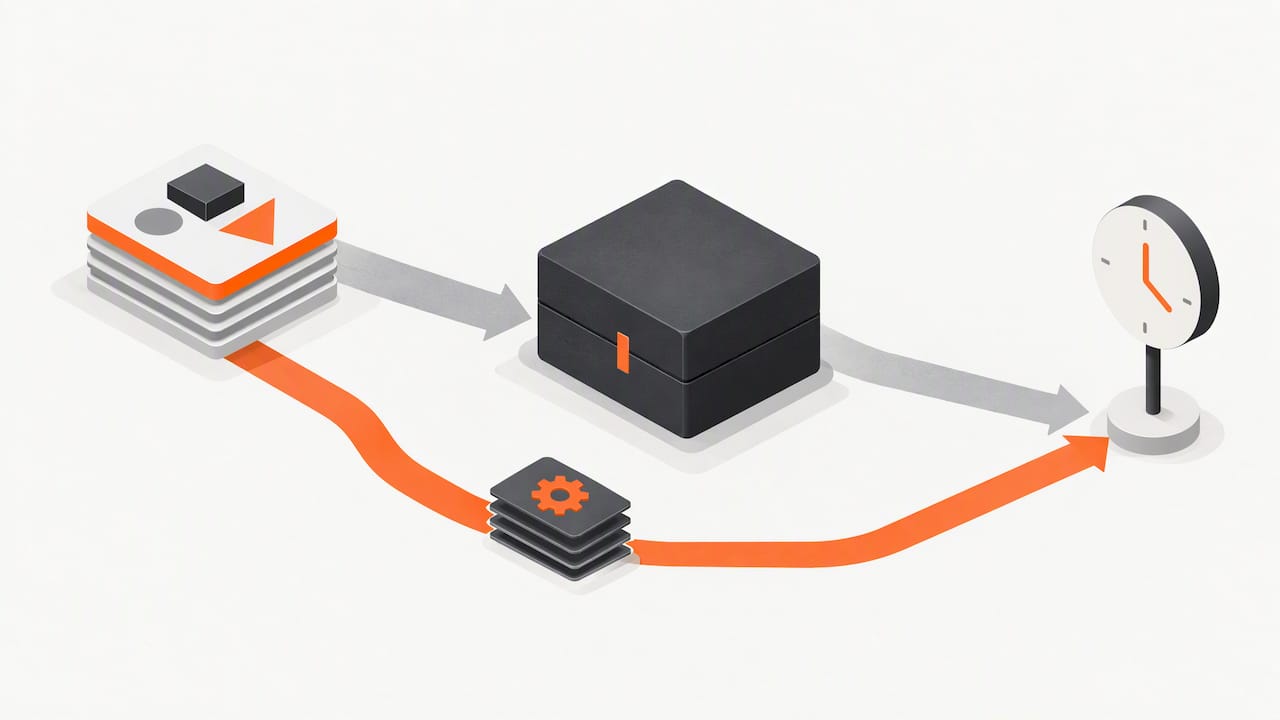
Cloud workstation billing generally falls into a few patterns: per-minute or hourly compute charges, flat monthly storage fees, and data egress charges for moving files out of the platform. Which model favors you depends on how continuously you work.
-
Per-minute or hourly compute suits bursty workloads, like a render crunch or a two-week contractor engagement, since you pay only while the GPU is active.
-
Persistent storage fees run separately from compute and continue whether or not you’re actively working, so factor them into any monthly estimate.
-
Egress costs apply when you pull large files, like finished renders or point cloud exports, out of the cloud environment.
-
Idle behavior matters: a session left running accrues compute charges even if you’ve stepped away, so stopping a workstation when not in use is the single easiest way to control spend.
To estimate cost-per-active-hour, add your compute rate to a prorated share of storage and expected egress, then compare that figure against the depreciation of a comparable physical workstation over its useful life. For burst rendering or multi-GPU sessions, budget compute separately from your steady-state modeling work, since a short multi-GPU render job can cost more per hour than a week of single-GPU modeling, even though the total spend stays modest.
Performance testing and benchmarks: what to run and how to interpret results
Benchmarks only matter if they mirror your actual work. Before trusting a cloud configuration with production files, run a short checklist against it.
-
SPECviewperf at your target resolution, ideally 4K, since viewport-heavy benchmarks expose GPU bottlenecks that simpler tests miss.
-
Viewport responsiveness during pan, zoom and orbit on your largest real assembly, not a synthetic sample file.
-
Open, save and regen times for your heaviest project, timed against your current physical workstation as a baseline.
-
Render timings for a representative scene, repeated across a few sessions to check for variance.
NVIDIA’s documentation on virtual workstations describes case studies where firms moved high-end CAD work to virtual workstations for improved collaboration and scalability, a useful reference point when deciding whether your own results are in a reasonable range. For multi-user scenarios, test the same workload under MIG partitioning versus time-sliced vGPU allocation, since isolation affects how much one busy session degrades another’s frame times.
A trial is only useful if it tests the full chain, not just raw GPU throughput:
-
Network round-trip time from your actual location to the hosting region.
-
Multi-monitor 4K streaming at your normal monitor count.
-
Project load times for your largest real file, run more than once.
Treat any configuration that can’t hold steady frame times on your own largest assembly as a fail, regardless of its benchmark score on someone else’s test file.
User experience and workflows: latency, multi-monitor and color accuracy
Benchmarks tell you what’s possible; daily use tells you what’s tolerable. Latency is the first thing CAD users notice, since even a small delay between mouse movement and viewport response breaks the feel of direct manipulation that CAD work depends on.
-
Test with your own mouse and monitor setup, not a vendor’s demo rig, since input devices and display refresh rates both affect perceived lag.
-
Confirm multi-monitor support holds steady 4K at 60 frames per second across every screen you actually use, not just the primary display.
-
Check color fidelity against a reference image if your work includes visualization or rendering review, since compression artifacts can quietly shift how a client-facing render looks.
-
Validate collaboration features, shared sessions, version history and secure remote access, with a real second reviewer in the loop, not just a solo test.
Routing and region selection do more for perceived performance than almost any other setting, since picking the nearest available region cuts round-trip latency more reliably than any client-side tuning.
Pro Tip: Run your first multi-monitor 4K test on the exact project file you’ll be reviewing with a client, not a sample scene, since real geometry complexity changes how streaming compression behaves.
How a modern GPU cloud desktop solves CAD team problems
A production GPU cloud desktop needs to answer three recurring pain points: provisioning speed, scaling under deadline pressure, and paying for idle hardware. Our service is built around dedicated, not shared GPUs, so a session’s performance doesn’t depend on what another customer is doing at the same time, paired with per-minute billing that stops charging the moment a desktop is shut down.
-
Persistent storage such as NVMe SSDs keeps project files, plugins and settings intact between sessions, removing daily re-setup.
-
Browser-based streaming at 4K and 60 frames per second means no local software installation, which simplifies onboarding a contractor to minutes rather than days.
-
Instant hardware scaling lets a team move from a single GPU to multiple GPUs per session when a render deadline demands it, then scale back down afterward.
For a first pilot, a reasonable starting target is a mid-range GPU configuration, 32 GB of RAM, and persistent NVMe storage sized to your largest active project, tested against your own files before committing a whole team to the move. Our use cases page outlines configurations by workflow if you want a starting point closer to your specific discipline.
Where cloud workstations fit in the future CAD toolkit
Cloud workstations are past the experimental stage for burst rendering and contractor onboarding, but full-time daily modeling adoption still trails, mostly on latency comfort rather than raw capability. Early adopters gain the most where hiring isn’t tied to a location and where project demand spikes unevenly through the year.
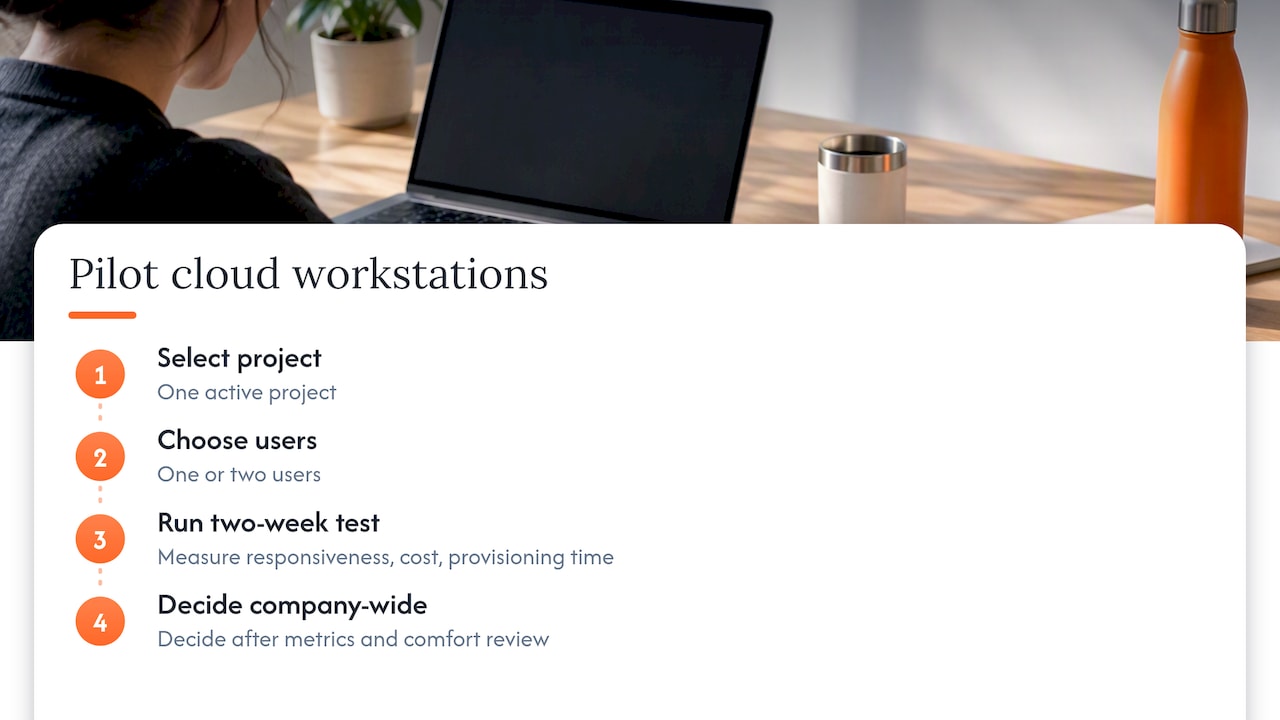
A sensible pilot: pick one active project, one or two users, and measure perceived responsiveness, cost per active hour and provisioning time over two weeks before deciding anything company-wide. Test it with a real project file, not a sample.
— Erkan
Try a cloud GPU desktop built for CAD workloads
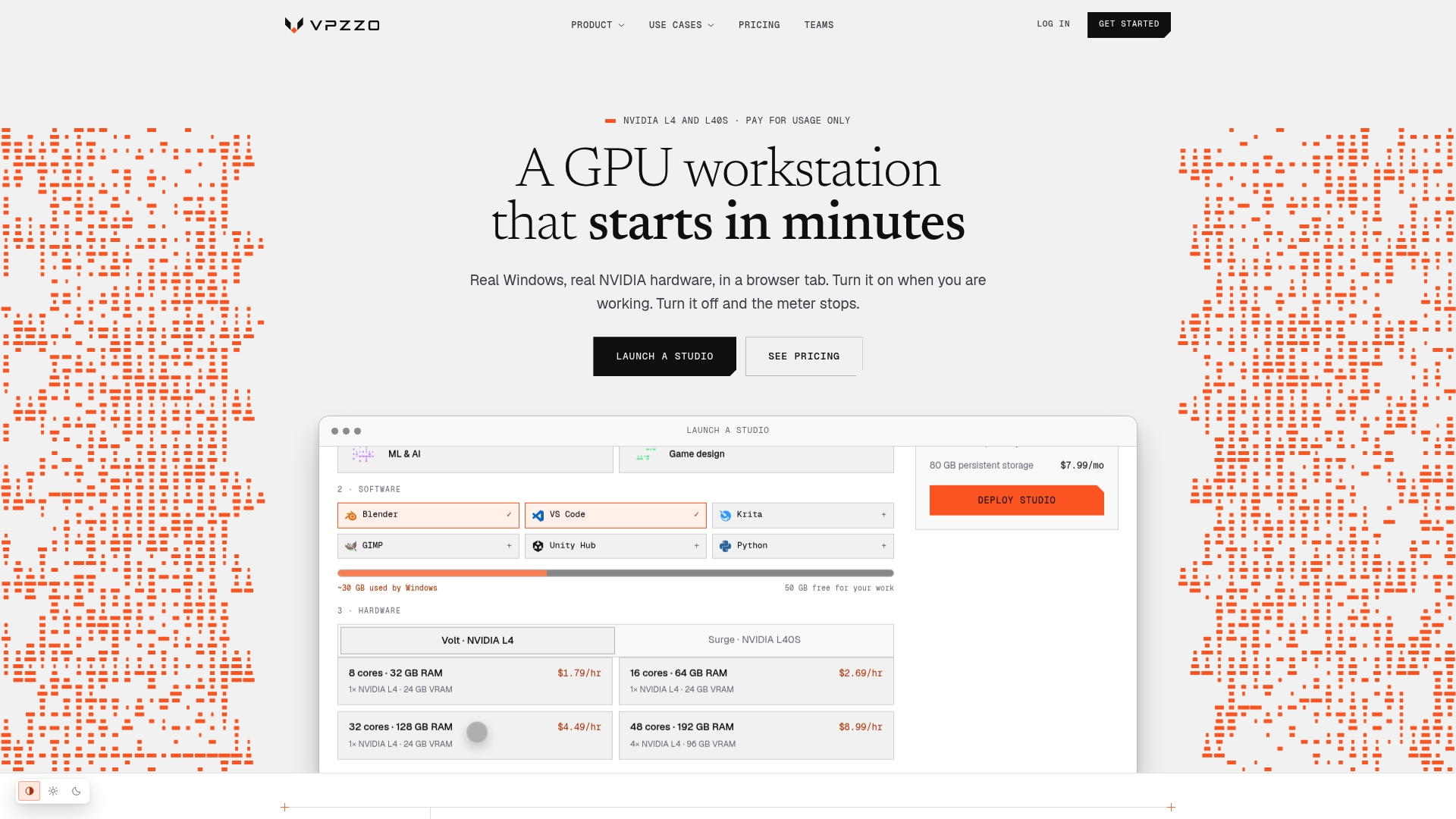
If the checklist above left you wanting to test against real hardware rather than a spec sheet, our dedicated Nvidia GPUs, per-minute billing and persistent NVMe storage are built to match exactly those test criteria. Nothing is shared with another customer’s session, so the frame times you see in a trial are the frame times you get in production, and stopping a session stops the charges.
A sensible pilot configuration for CAD or BIM work starts with:
-
A single dedicated GPU session, scaled up only when a render or review demands it.
-
32 GB or more of RAM for large assemblies.
-
Persistent storage sized to your current project’s working set.
Check current rates on our pricing page or review supported hardware on our Nvidia GPUs page before running your own project file through a trial session.
FAQ
What is the best CAD workstation?
There is no single best configuration; the right setup depends on your software and project size, but Autodesk’s own guidance points to 3+ GHz processors, 32 GB of RAM and a professional GPU with at least 8 GB of VRAM as a baseline suitable for demanding work. Large assemblies or point cloud projects generally require greater VRAM and RAM.
What are some popular cloud-based CAD programs?
Cloud-based CAD spans two approaches: cloud-native platforms built to run entirely in a browser, such as Onshape, and traditional desktop CAD software like AutoCAD or Revit streamed from a remote virtualized workstation. Each model has different operational trade-offs, covered in Onshape’s own comparison of the two approaches.
Is there a cloud version of AutoCAD?
AutoCAD itself is not rebuilt as a cloud-native application, but it can run on a remote, GPU-accelerated virtual desktop that you access through a browser. Whether your license permits that setup depends on whether it’s a single-user or multi-user subscription, a distinction worth confirming before deployment, as discussed in Autodesk community guidance.
What is a CAD workstation?
A CAD workstation is a computer configured specifically for computer-aided design work, with a professional-grade GPU, ample RAM and fast storage tuned to handle large models, assemblies and renders. A cloud CAD workstation delivers that same configuration remotely, streamed to your browser instead of installed on a desk beside you.
Sources
-
System requirements for AutoCAD 2027 including Specialized Toolsets
-
Virtual Workstations for Professional Graphics & IT | NVIDIA