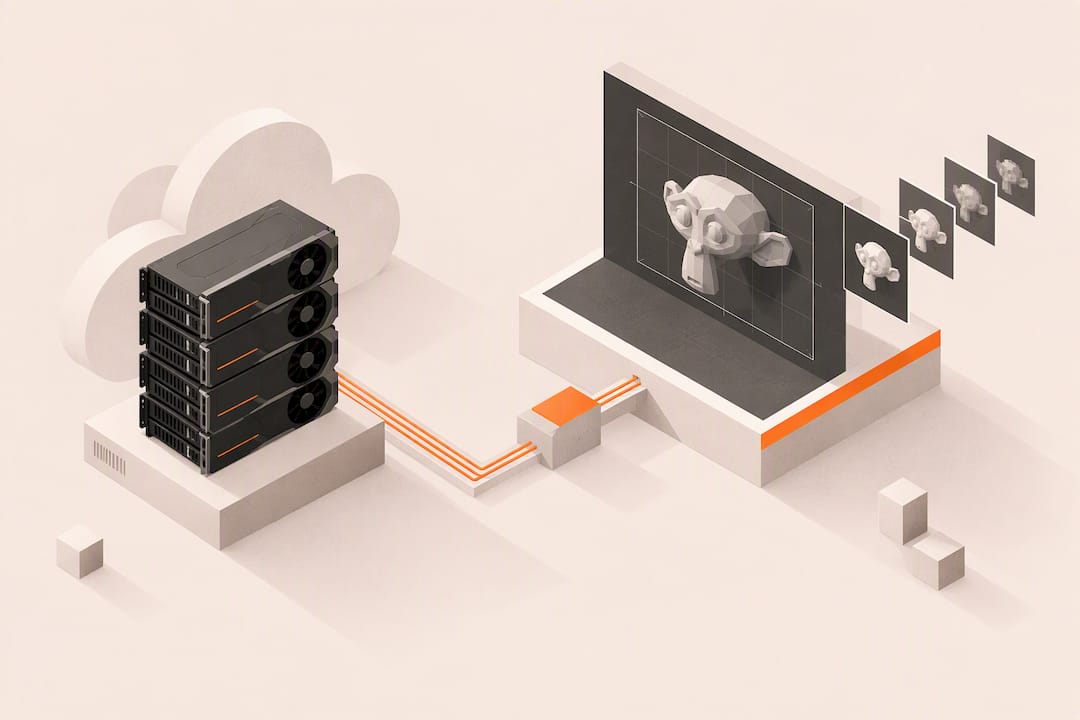
For most Blender artists, the fastest, lowest-friction route is a per-minute cloud GPU desktop: you get dedicated hardware in minutes with no upfront spend. Building your own render farm only makes sense when you need sustained, very large-scale throughput or strict on-premises control. The sections below cover cost, prep work, and the tools that make either path work.
TL;DR:
Cloud GPU desktops are more cost-effective for bursty workloads and short deadlines, as they bill by the minute with no upfront hardware costs.
VRAM limitations significantly impact rendering performance in cloud environments, especially when textures or geometry exceed GPU memory, causing slow fallback to system RAM.
Preparing a Blender project for remote rendering requires packing external data, verifying file paths, and testing a single frame to identify potential issues before full animation submission.
Benchmarking a single representative frame locally versus remotely provides the most reliable estimate of cost savings and speedup, guiding whether cloud rendering is worthwhile.
Small studios and freelancers should start with quick cloud GPU tests before investing in render farms, which only become cost-effective with consistently high utilization.
Table of Contents
-
Cloud GPU desktops vs building your own render farm: a practical comparison
-
Preparing a Blender project for cloud rendering: a checklist and workflow
-
Tools and add-on workflows that automate submission to cloud or farm nodes
-
Estimating costs and measuring speedups: a simple benchmark method
-
Vpzzo: test a dedicated GPU desktop before you commit to a workflow
Cloud GPU desktops vs building your own render farm: a practical comparison
A cloud GPU desktop gives you a dedicated machine you rent by the minute or hour, accessed through a browser, with no hardware to buy or maintain. A DIY render farm is a cluster of machines you own or colocate, configured to split animation frames across nodes using tools like a network renderer or job scheduler.
The two approaches diverge sharply once you look past the sticker price:
-
Cost model: cloud bills per minute of active use; a farm requires upfront hardware capital plus ongoing power and maintenance.
-
Speed: both can be fast per frame, but a farm’s total throughput depends on how many nodes you can keep busy at once.
-
Scaling: cloud desktops scale instantly by changing GPU count; a farm scales only as fast as you can add physical machines.
-
Maintenance: cloud removes driver updates and hardware failures from your plate; a farm makes you responsible for both.
-
Security: cloud providers manage physical access and infrastructure; a farm keeps everything inside your own network, which some studios require.
-
Learning curve: a cloud desktop works like a normal PC in a browser tab; farm software like BlenderRemoteRender or a Slurm backend takes setup time to learn.
A freelancer with a deadline this week benefits most from renting. A small studio with constant overflow work might blend both, using owned machines for baseline capacity and cloud bursts for deadlines. A studio rendering long animation batches every month, on the other hand, may eventually justify owned hardware if utilization stays high enough to offset the capital cost.
How Blender rendering behaves in cloud environments
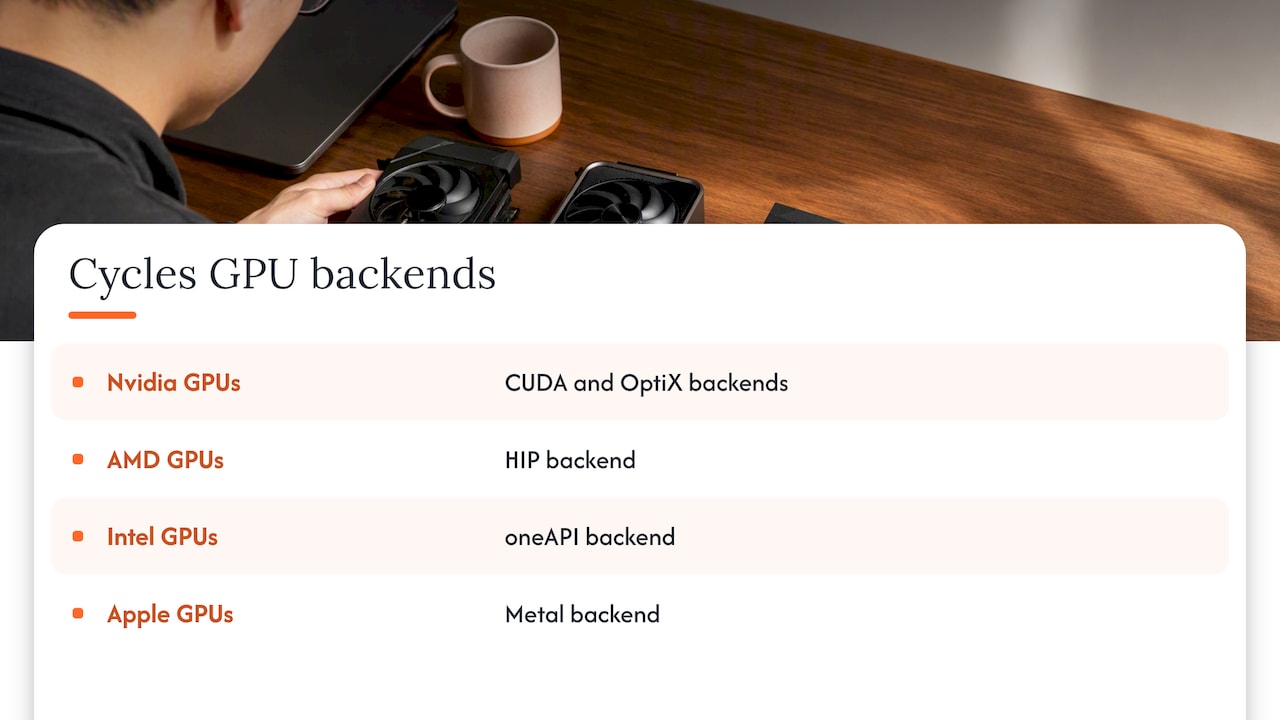
Cycles, Blender’s path-tracing render engine, supports several GPU backends: CUDA and OptiX on Nvidia cards, HIP on AMD, oneAPI on Intel, and Metal on Apple hardware, as documented in the Blender manual’s GPU rendering guide. Which backend you pick depends entirely on which GPU your cloud instance provides.
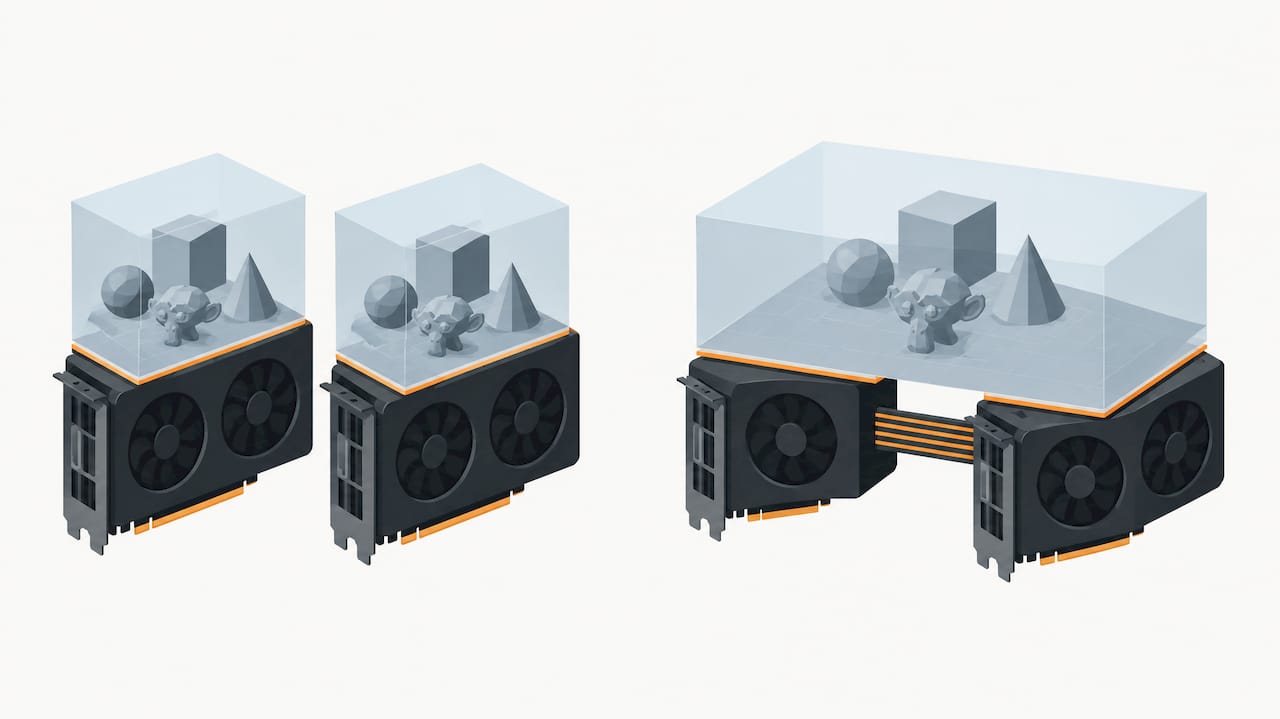
VRAM is the real bottleneck. When a scene’s textures and geometry exceed available GPU memory, Blender falls back to system RAM, and performance drops noticeably, according to the same Blender manual page. This matters more in the cloud than locally, since you are paying by the minute for that slower fallback render.
Multi-GPU setups share memory in limited ways: each card still needs its own copy of scene data unless connected through NVLink, which pools memory across cards. Without NVLink, adding a second GPU speeds up rendering but does not expand your effective VRAM ceiling.
A few settings reduce memory pressure before you ever touch a render button: lowering texture resolution, adjusting tile size, and converting textures to the tiled .tx cache format all cut memory use, per the Blender performance manual. These are worth testing on a single frame before committing a full animation to a remote job.
Preparing a Blender project for cloud rendering: a checklist and workflow
Getting a .blend file ready for a remote machine is mostly about removing assumptions your local setup quietly made for you. Missing textures and broken file paths are the most common cause of a failed remote render.
-
Pack all external data (textures, linked libraries, fonts) into the
.blendfile using Blender’s File menu, or keep a consistent relative path structure. -
Save a fresh version and open it in a clean Blender instance locally to confirm nothing is missing before upload.
-
Decide where simulations (smoke, fluid, cloth) get baked: baking locally first avoids surprises if the remote machine’s physics step differs.
-
Convert large textures to
.txcache format and drop resolution where the camera never gets close enough to need it, per the Blender performance guide. -
Render one representative frame remotely first and compare it pixel-for-pixel against a local render before sending the full animation.
-
Split the animation into frame ranges and submit them as parallel jobs, then spot-check outputs for dropped frames or texture mismatches once they return.
Pro Tip: Always render frame 1 and your most complex frame separately before queuing the whole animation; that single check catches most path and memory errors for the cost of two frames.
Tools and add-on workflows that automate submission to cloud or farm nodes
Several classes of tooling exist to connect Blender to remote compute, each suited to a different setup.
-
Blender add-ons like Cloud Render deploy a private farm on cloud infrastructure, handling job creation, credential storage, and parallel frame distribution automatically.
-
Client-server projects such as BlenderRemoteRender send jobs from a Blender add-on to an HPC or Slurm backend, suited to studios with existing cluster access.
-
Standalone network renderers like LogicReinc.BlendFarm distribute frames across machines on a local network, with automatic Blender version matching.
-
Integration bridges such as the OmnibusCloud Blender add-on handle file packing, upload caching, and bake strategy selection, reducing manual steps for simulation-heavy scenes.
Whichever you choose, expect to manage credentials, pick a region close to your location for latency, and account for storage costs on uploaded assets. Automation mainly changes your job from babysitting a single render to monitoring a queue and handling retries when a node fails.
Estimating costs and measuring speedups: a simple benchmark method
The most reliable way to decide if cloud rendering pays off is a small benchmark, not a spec sheet comparison.
-
Render one representative frame locally and record the time.
-
Render the same frame on the remote GPU you are considering and record that time too.
-
Divide local time by remote time to get your speedup factor, then multiply remote per-frame time by your total frame count to estimate the full job’s render time.
-
Add upload time for your packed
.blendfile and textures, plus a buffer for at least one retry on a dropped frame. -
Multiply total minutes by your provider’s per-minute rate to get a cost estimate before committing the full animation.
A single heavy still image is cheap to test and low-risk. A long animation multiplies both the savings and the exposure if your benchmark frame was not representative. Burst rendering, where you need a batch done by a hard deadline, is where per-minute cloud billing shows its clearest advantage over idle owned hardware. Cloud pays back fastest for irregular or deadline-driven workloads. Owned hardware starts to make more sense only when utilization stays high across many months, enough to offset the capital cost against the cloud’s per-minute rate.
Author perspective and quick decision checklist
For most freelancers and small teams, the fastest path is a quick benchmark on a dedicated cloud GPU before any farm software gets installed.
| Question | Why it matters |
|---|---|
| What is your deadline? | Short deadlines favor instant-scaling cloud desktops. |
| What is your budget per project? | Per-minute billing suits irregular workloads better than CAPEX. |
| How large are your assets? | Large textures affect upload time and VRAM fallback risk. |
| Do you need strict data privacy? | On-premises farms suit strict privacy requirements. |
| How large is your team? | Bigger teams benefit more from shared farm infrastructure. |
| How often do you render at scale? | Frequent, heavy use shifts the math toward owned hardware. |
Red flags to watch for: untested file paths, unverified texture packing, and skipping the single-frame benchmark before a full animation queue.
What the data actually tells Blender artists to do
The conventional wisdom treats render farms as the serious, professional choice and cloud rendering as a stopgap. That framing gets it backward for most of the people reading this. A render farm’s economics only work when utilization stays consistently high, and most freelance and small-studio work is bursty by nature: a crunch before a deadline, then weeks of lighter work. Paying for idle hardware during those quiet weeks erodes the advantage a farm is supposed to offer.
What gets underrated is the benchmark step itself. Artists often skip straight to committing a full animation to a remote service, then discover a VRAM fallback or a missing texture path halfway through a paid job. A single test frame costs almost nothing and catches most failures before they become expensive.
Prioritize testing over planning. Render one frame, check the cost and time against your local machine, and let that number, not a spec sheet, decide your next move.
— Erkan
Vpzzo: test a dedicated GPU desktop before you commit to a workflow
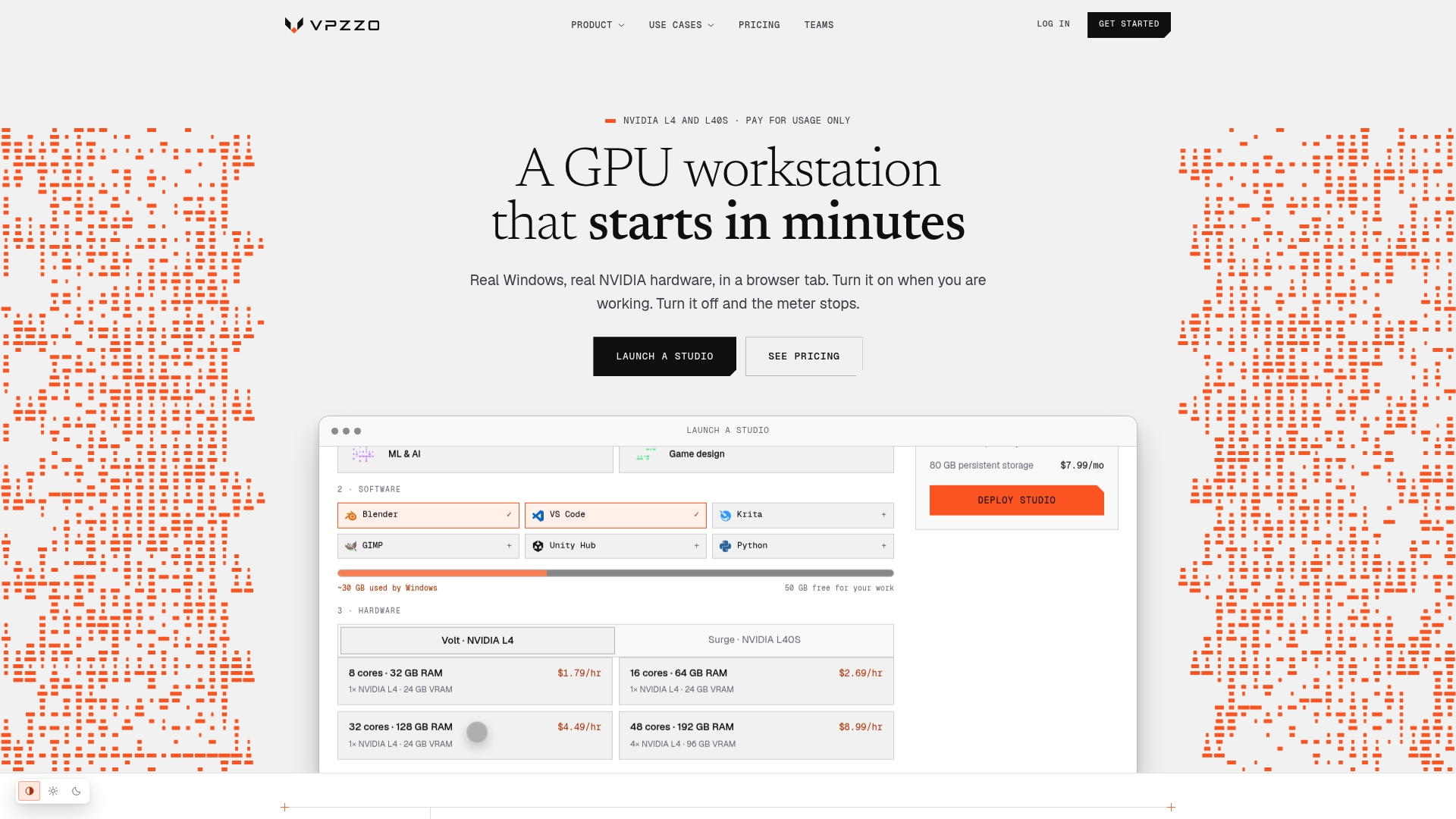
We built around the gap this guide keeps surfacing: paying only for the minutes you actually render, on a dedicated GPU, with nothing to install and no contract to sign. Volt fits single frames and lighter scenes well; Surge suits heavier animations that need more headroom.
-
Sign up and launch a desktop in your browser, no driver installs or local hardware changes needed.
-
Run your benchmark frame first and compare the time and cost against your local machine.
-
Scale GPU count instantly if the frame needs more headroom, then queue the rest of the animation once the numbers check out.
Check current rates on our pricing page and start with a single test render before committing a full project.
FAQ
Is 64GB of RAM overkill for Blender?
For most scenes, no: having ample system RAM gives Blender room to handle large textures and simulations without hitting system limits, especially useful as a fallback when GPU VRAM runs out during GPU rendering. Lighter projects can run comfortably on less, so the right amount depends on your scene complexity rather than a fixed rule.
Does NASA use Blender?
Public information on this is not something we can confirm or deny with a verifiable source, so we won’t speculate here. Blender is widely used across visualization and animation industries, but specific organizational adoption claims need their own direct source.
How do I start cloud rendering with Blender?
Pack your .blend file’s textures and assets, test a single representative frame on the remote machine, and compare it against your local render before queuing the full animation. From there, most workflows split the animation into frame ranges submitted as parallel jobs on a cloud GPU desktop or through a farm add-on like Cloud Render.
Is Blender CPU heavy or GPU heavy?
Blender’s Cycles engine runs on both CPU and GPU, but GPU rendering through CUDA, OptiX, HIP, oneAPI, or Metal typically delivers much faster results for most scenes, per the Blender manual. The real limit on GPU rendering is available VRAM, not raw processing power, since Blender falls back to slower system RAM once video memory fills up.